User Guide

Table of Contents
- Table of Contents
- Welcome to PoochPlanner
- Introducing PoochPlanner
- Navigating this User Guide
- Useful Notations and Glossary
- Quick start
- Navigating the GUI
- Features
- Common Errors
- FAQ
- Known issues
- Prefix Summary
- Command Summary
Welcome to PoochPlanner
PoochPlanner is the quintessential address book, crafted exclusively for dog cafe owners. We understand the unique challenges you face, which is why PoochPlanner comes packed with features designed specifically to simplify contact management for dog cafe owners like yourself.
By seamlessly combining the efficiency of a Command Line Interface (CLI) with an intuitive Graphical User Interface (GUI), PoochPlanner empowers you to effortlessly complete your contact management tasks twice as fast as traditional GUI applications.
Get started by following the steps in this user guide! Experience the difference today with PoochPlanner — the ultimate solution tailored to your needs.
Introducing PoochPlanner
PoochPlanner is your go-to address book, tailor-made for dog cafe owners like yourself. With four main contact types — person, staff, supplier, maintainer — each equipped with its own set of attributes and functions, managing your contacts has never been easier.
| Contact | Definition and Examples |
|---|---|
| Person | Any person that does not fall under staff, supplier, or maintainer. E.g. neighbor, work friend |
| Staff | Any full-time or part-time employee working in your dog cafe. E.g. waiter, waitress, dishwasher |
| Supplier | Any logistics partner that supplies stock for your dog cafe. E.g. kibbles supplier, coffee beans supplier |
| Maintainer | Any externally hired specialized personnel that takes care of the dogs. E.g. dog groomer, veterinarian |
But our commitment to improving your contact management experience doesn’t end here. In addition to the essential functionalities such as adding contacts, searching for contacts, editing contacts, deleting contacts, viewing help menus, listing all contacts, clearing all contacts, undoing commands, and redoing commands, PoochPlanner comes loaded with extra features. You can now pin important contacts, jot down notes, set reminders, rate, and even sort your contacts - all to ensure a seamless and efficient workflow tailored to your needs as a busy dog cafe owner.
| Feature | Purpose |
|---|---|
| Pin/Unpin | Pin/Unpin contacts so that you can easily access your important contacts. |
| Note | Add notes to contacts so that you can keep track of all of your important details. |
| Remind | View reminders of upcoming deadlines so that you will never miss any of your tasks. |
| Rate | Add ratings to your contacts so that you can easily track the performances of your contacts. |
| Sort | View your contacts in a sorted list so that you can easily filter and locate your contacts. |
Navigating this User Guide
This user guide is designed to help you easily navigate the commands of PoochPlanner and make the most of this tool, whether you are a beginner or an experienced user.
- If you are eager to get started with PoochPlanner, head over to our Quick Start section for easy-to-follow instructions on downloading PoochPlanner.
- If you are a new user, explore the following sections to familiarize yourself with the basics:
-
Navigating the GUI : Learn about the input box and contact cards.
-
Features : Discover the exciting features waiting for you.
-
Navigating the GUI : Learn about the input box and contact cards.
- If you are an advanced user, dive into our special features to further enhance your experience:
- If you want a quick overview of our commands, check out our Command Summary.
- If you are encountering issues or have any questions about PoochPlanner, check out our Common Errors and FAQ for helpful troubleshooting tips and answers to the common queries.
Useful Notations and Glossary
While exploring PoochPlanner’s features with this user guide, you can take note of the following symbols and what they represent.
| Symbol | Meaning |
|---|---|
 |
Important information |
 |
Warning or caution |
 |
Additional information such as tips or notes |
The following glossary table provides clarification on commonly used terminology.
| Phrases | Meaning |
|---|---|
| GUI | GUI stands for Graphical User Interface and it represents the visual display of PoochPlanner that you see when PoochPlanner is running. |
| GUI component | GUI components are parts that make up a GUI. For more information on specific GUI components, refer to this section. |
| CLI | CLI stands for Command Line Interface and it represents a text-based user interface to interact with PoochPlanner. |
| Command | Command refers to an input from the user that informs PoochPlanner to perform a specified action. View PoochPlanner’s Command Summary. |
| Prefix | Prefixes are fields that come in a specified format (e.g. “; name :”, “; phone :”). View PoochPlanner’s Prefix Summary. |
| Case-sensitive | The casing of the alphabetic characters matters (e.g. “good” is different from “GOOD”). |
| Case-insensitive | The casing of the alphabetic characters does not matter (e.g. “good” is taken to be equivalent to “GOOD”). |
| Space-sensitive | The number of spaces in a command matters (e.g. “happy puppy” is different from “happypuppy”). |
| Space-insensitive | The number of spaces in a command does not matter (e.g. “happy puppy” is taken to be equivalent to “happypuppy”). |
| Delimiter | A separator in the command input that defines the boundaries between different information in a command (e.g. “;” is a delimiter for our commands). |
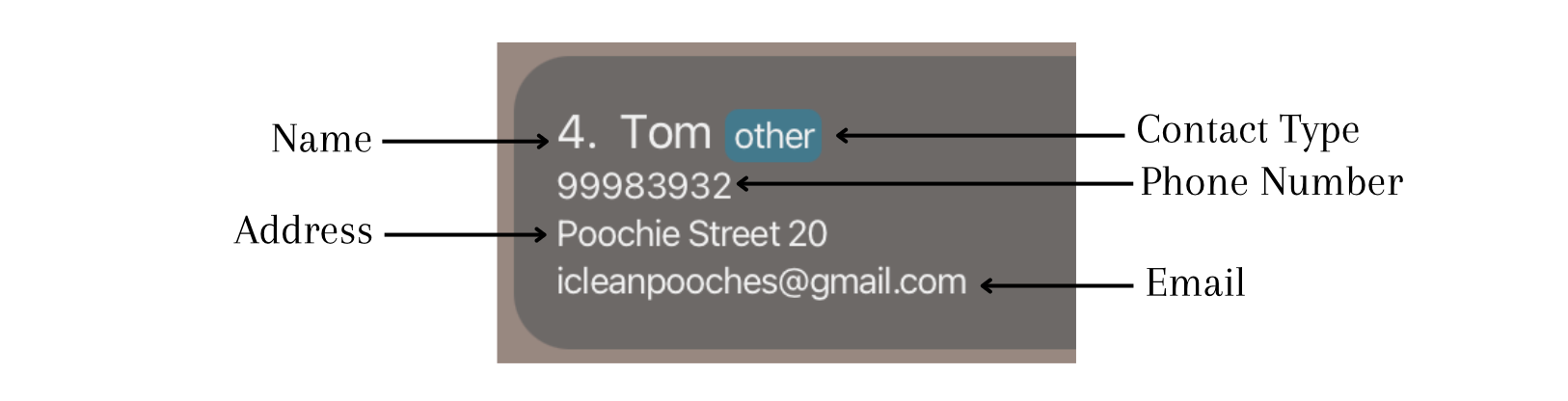
| Contact card | The box displayed for each contact which contains all of their respective details. |
Quick start
-
Ensure that you have Java
11installed on your computer. -
Download the latest
[CS2103T-W10-2][PoochPlanner].jarfrom here. -
Copy the file to the folder that you want to use as the home folder for your PoochPlanner.
-
Open a command terminal and navigate to the folder where you placed the jar file in.
-
Use the command
java -jar [CS2103T-W10-2][PoochPlanner].jarto run PoochPlanner.
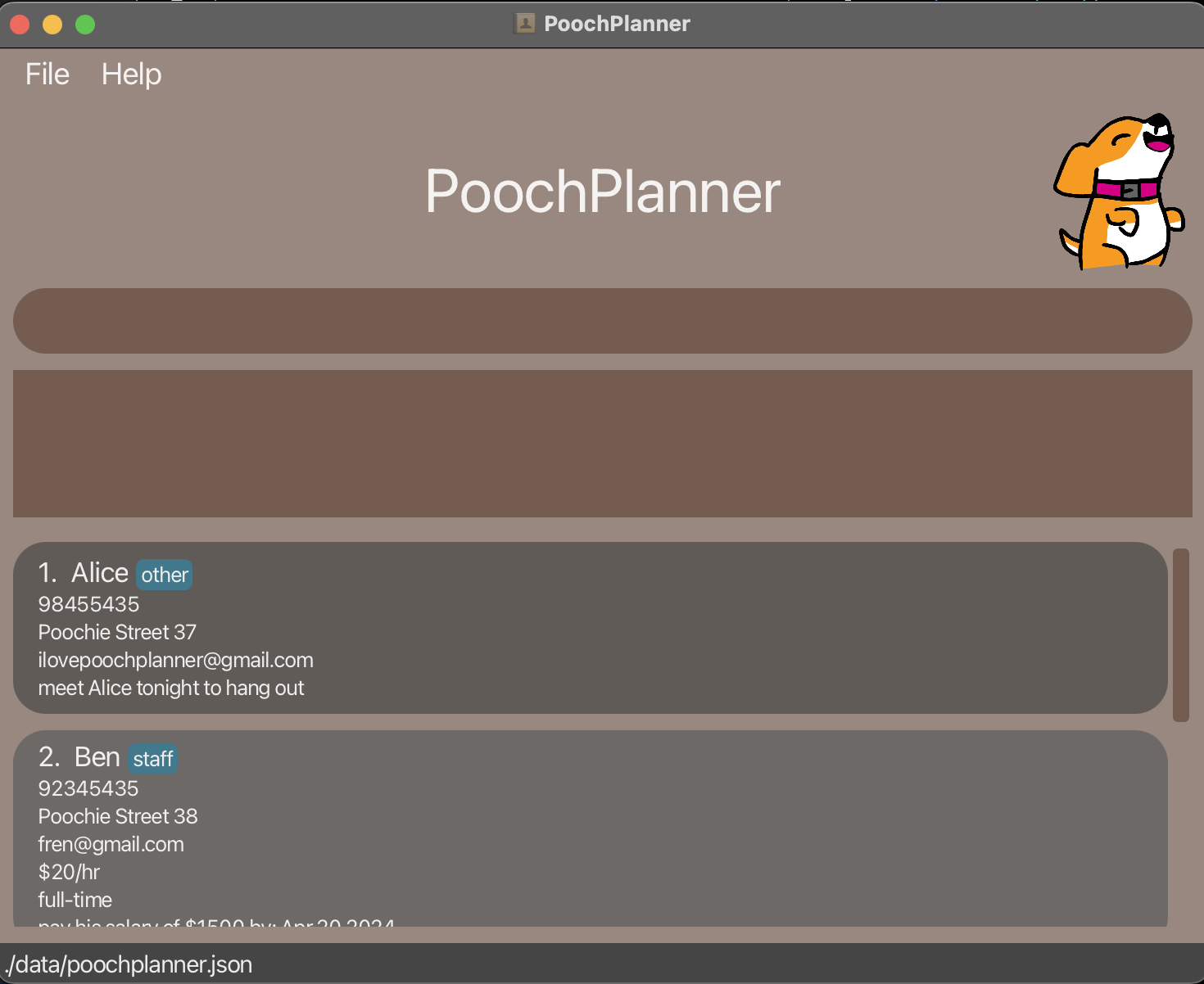
-
You can try out the sample commands below.
-
/add-person ; name : Pooch ; phone : 98765435 ; address : Poochie Street 24 ; email : iampooch@gmail.com
The above command adds a general contact namedPoochto your contacts list in PoochPlanner. -
/delete ; name : Pooch
The above command deletes a contact namedPoochfrom your contacts list in PoochPlanner. -
/exit: Exits PoochPlanner.
-
-
Refer to our Features section below for the details of each command.
Navigating the GUI
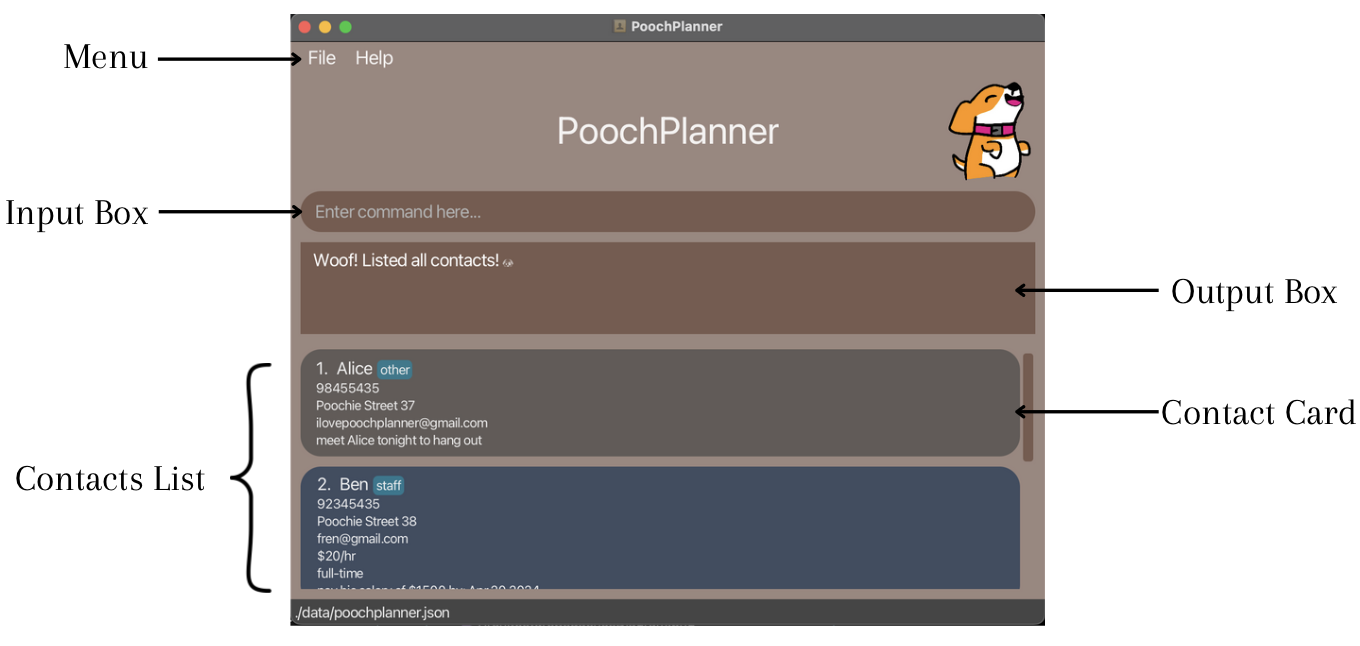
PoochPlanner has a Graphical User Interface (GUI) that provides you with a pleasant visual experience. Here is a quick look at the different GUI components of PoochPlanner.
Basic Orientation
Contact Card
Features
Notes about the command format:
-
Words in
[parameter]are the parameter values to be keyed in by you.
For instance, in/add-staff ; name : [name], you will need to key in a value for the[name]parameter.
For example, the actual command that you may input can be/add-staff ; name : Poochie. -
Parameters can be in any order.
For instance, if the command specifiesaddress : [address] ; phone : [phone],phone : [phone] ; address : [address]is also equivalent. -
You should be careful when copying and pasting commands that span multiple lines as space characters surrounding line-breaks may be omitted when copied over to PoochPlanner.
-
You should take caution when entering the commands as commands are space-sensitive.
For instance, both ` ; address : ` and ` ; phone : ` are correctly spaced prefixes.
Make sure that all prefixes that you have keyed in contain the correct spacing format.
Core Features
Adding a contact: add
Adds a person / staff / supplier / maintainer contact so that your contacts list can be updated with new contacts.
The table below summarizes the add command, format, and examples for each contact type.
| Adds a … | Format & Examples |
|---|---|
| Person | Format :/add-person ; name : [name] ; phone : [phone] ; address : [address] ; email : [email] Example: /add-person ; name : Janna ; phone : 98765435 ; address : Poochie Street 24 ; email : ihelppooches@gmail.comThe above command adds a Person contact. Person’s name is Janna, phone number is 98765435, address is Poochie Street 24, and email is ihelppooches@gmail.com. |
| Staff | Format : /add-staff ; name : [name] ; phone : [phone] ; address : [address] ; email : [email] ; salary : [salary/hr] ; employment : [part-time/full-time] Example: /add-staff ; name : Poochie ; phone : 98765435 ; address : Poochie Street 21 ; email : ilovecatstoo@gmail.com ; salary : $50/hr ; employment : part-timeThe above command adds a Staff contact. Staff’s name is Poochie, phone number is 98765435, address is Poochie Street 21, email is ilovecatstoo@gmail.com, salary is $50/hr, and employment is part-time. |
| Supplier | Format : /add-supplier ; name : [name] ; phone : [phone] ; address : [address] ; email : [email] ; product : [product] ; price : [price/(quantity)] Example: /add-supplier ; name : PetCo ; phone : 98673098 ; address : Meow Street 24 ; email : ilovewombatstoo@gmail.com ; product : kibble ; price : $98/bagThe above command adds a Supplier contact. Supplier’s name is Petco, phone number is 98673098, address is Meow Street 24, email is ilovewombatstoo@gmail.com, product is kibble, and price of product is $98/bag. |
| Maintainer | Format : /add-maintainer ; name : [name] ; phone : [phone] ; address : [address] ; email : [email] ; skill : [skill] ; commission : [commission/hr] Example: /add-maintainer ; name : Tom Tan ; phone : 98765435 ; address : Poochie Street 24 ; email : ihelppooches@gmail.com ; skill : trainer ; commission : $60/hr The above command adds a Maintainer contact. Maintainer’s name is Tom Tan, phone number is 98765435, address is Poochie Street 24, email is ihelppooches@gmail.com, skill is trainer, and commission is $60/hr. |
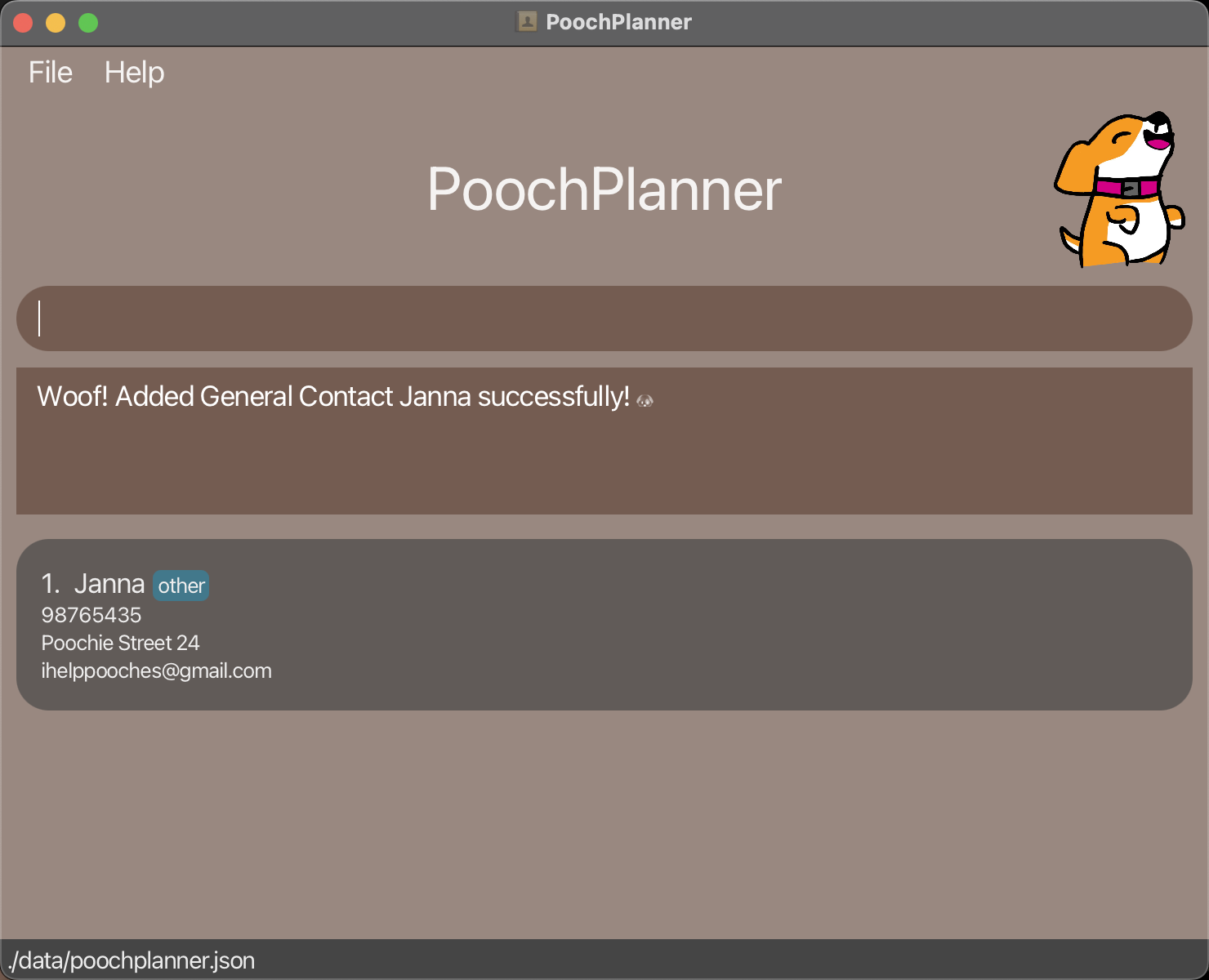
/add-person ; name : Janna ; phone : 98765435 ; address : Poochie Street 24 ; email : ihelppooches@gmail.com Constraints:
-
Contact type (person / staff / supplier / maintainer) must match the command used.
/add-person,/add-staff,/add-supplierand/add-maintainerrespectively. -
The fields
salaryandemploymentare only for Staff contact type. -
The fields
productandpriceare only for Supplier contact type. -
The fields
skillandcommissionare only for Maintainer contact type. -
Adding duplicate names will not be allowed.
-
nameis case-insensitive and space-sensitive. -
emailmust in the format {example}@{domain} or {example}@{domain}.{extension}. -
phonemust be in the format {Number} and at least 3 digits long. -
Only one phone number is allowed to be inserted per contact.
-
salaryandcommissionmust be in the format ${Number}/hr. -
pricemust be in the format ${Number}/{quantity}. -
employmentmust be either “part-time” or “full-time”.
Tip:
- You can use the
/undocommand to undo an/add-XYZcommand so that you can revert your changes!
Editing a contact : edit
Edits a person / staff / supplier / maintainer contact so that you can consistently modify and update your contacts list in PoochPlanner with new details.
The table below summarizes the edit command, format, and examples for each contact type.
| Edits a … | Format & Examples |
|---|---|
| Person | Format : /edit-person ; name : [name] ; field : { phone : [phone] ; address : [address] ; email : [email] } Example: /edit-person ; name : Mochie ; field : { address : Pooch Street 31}The above command edits the address field of Mochie to Pooch Street 31. |
| Staff | Format : /edit-staff ; name : [name] ; field : { phone : [phone] ; address : [address] ; email : [email] ; salary : [salary] ; employment : [part-time/full-time] } Example: /edit-staff ; name : Thomas ; field : { address : Poochie Street 25 ; employment : full-time } The above command edits the address and employment fields of Thomas to Poochie Street 25 and full-time respectively. |
| Supplier | Format : /edit-supplier ; name : [name] ; field : { phone : [phone] ; address : [address] ; email : [email] ; product : [product] ; price : [price] } Example: /edit-supplier ; name : Rachel ; field : { product : kibble ; price : $75/bag} The above command edits the product and price fields of Rachel to kibble and $75/bag respectively. |
| Maintainer | Format : /edit-maintainer ; name : [name] ; field : { phone : [phone] ; address : [address] ; email : [email] ; skill : [skill] ; commission : [commission] } Example: /edit-maintainer ; name : Alice ; field : { commission : $10/hr}The above command edits the commission field of Alice to $10/hr. |
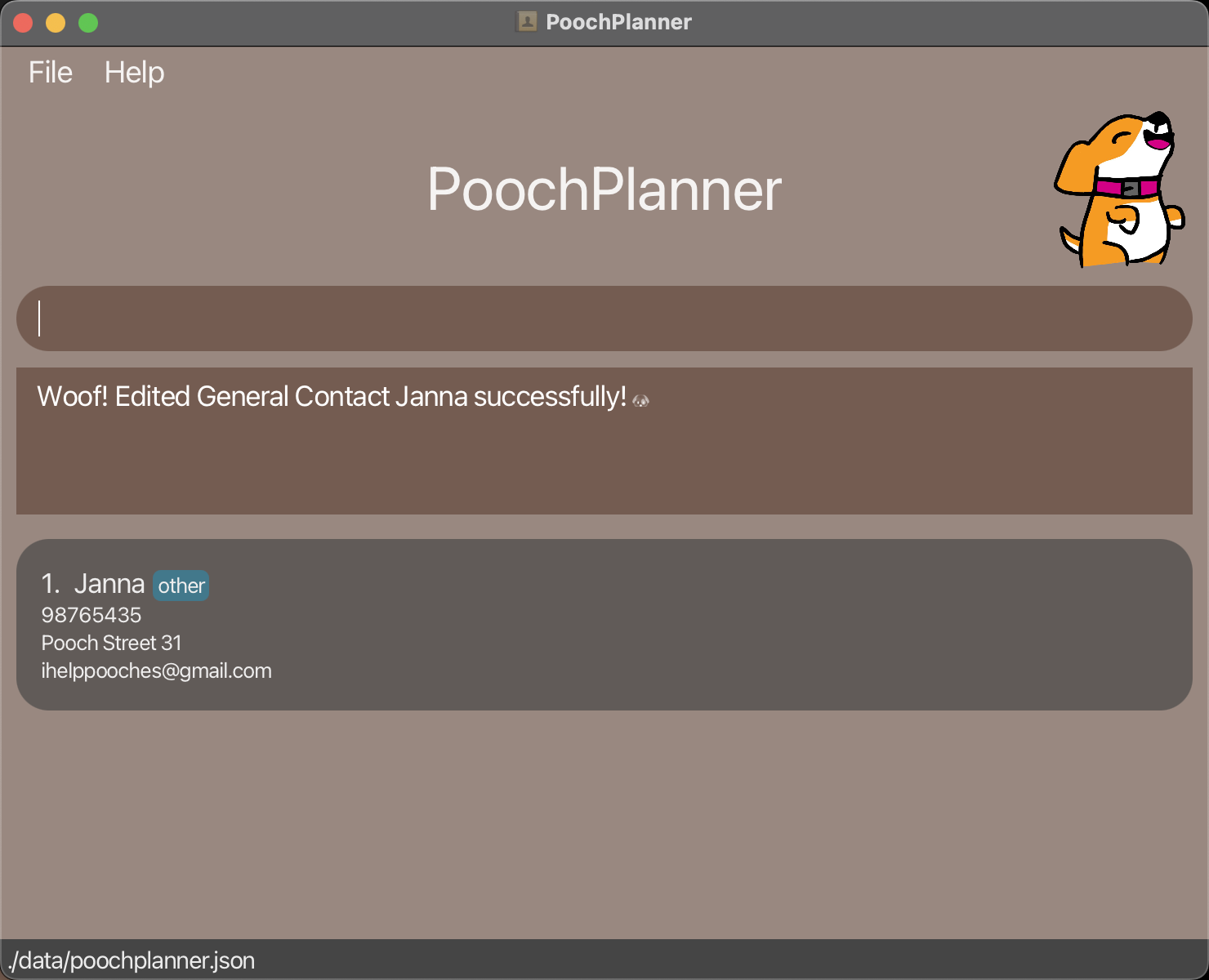
/edit-person ; name : Janna ; field : { address : Pooch Street 31 } Constraints:
-
Contact type (person / staff / supplier / maintainer), must match the command used.
/edit-person,/edit-staff,/edit-supplier, and/edit-maintainerrespectively. -
nameis a compulsory field that is case-insensitive and space-sensitive. -
A contact with the specified
namemust be present in your contacts list. -
The fields
salaryandemploymentare only for Staff contact type. -
The fields
productandpriceare only for Supplier contact type. -
The fields
skillandcommissionare only for Maintainer contact type. -
At least one field must be provided.
-
phonemust be in the format {Number} and at least 3 digits long. -
emailmust in the format {example}@{domain} or {example}@{domain}.{extension}. -
salaryandcommissionmust be in the format ${Number}/hr. -
pricemust be in the format ${Number}/{quantity}. -
employmentmust be either “part-time” or “full-time”.
Tip:
- You can edit multiple fields simultaneously to save time!
Searching a contact : search
Filters a person / staff / supplier / maintainer contact in your contacts list in PoochPlanner so that you can locate your contacts easily.
Format:
/search ; [search-field] : [value]
Examples:
-
/search ; phone : 98765432The above command searches for all contacts with the phone number
98765432. -
/search ; salary : $50/hrThe above command searches for all staff with a salary
$50/hr. -
/search ; name : Poochie ; phone : 98765432The above command searches for all contacts with the name
Poochieand the phone number98765432.
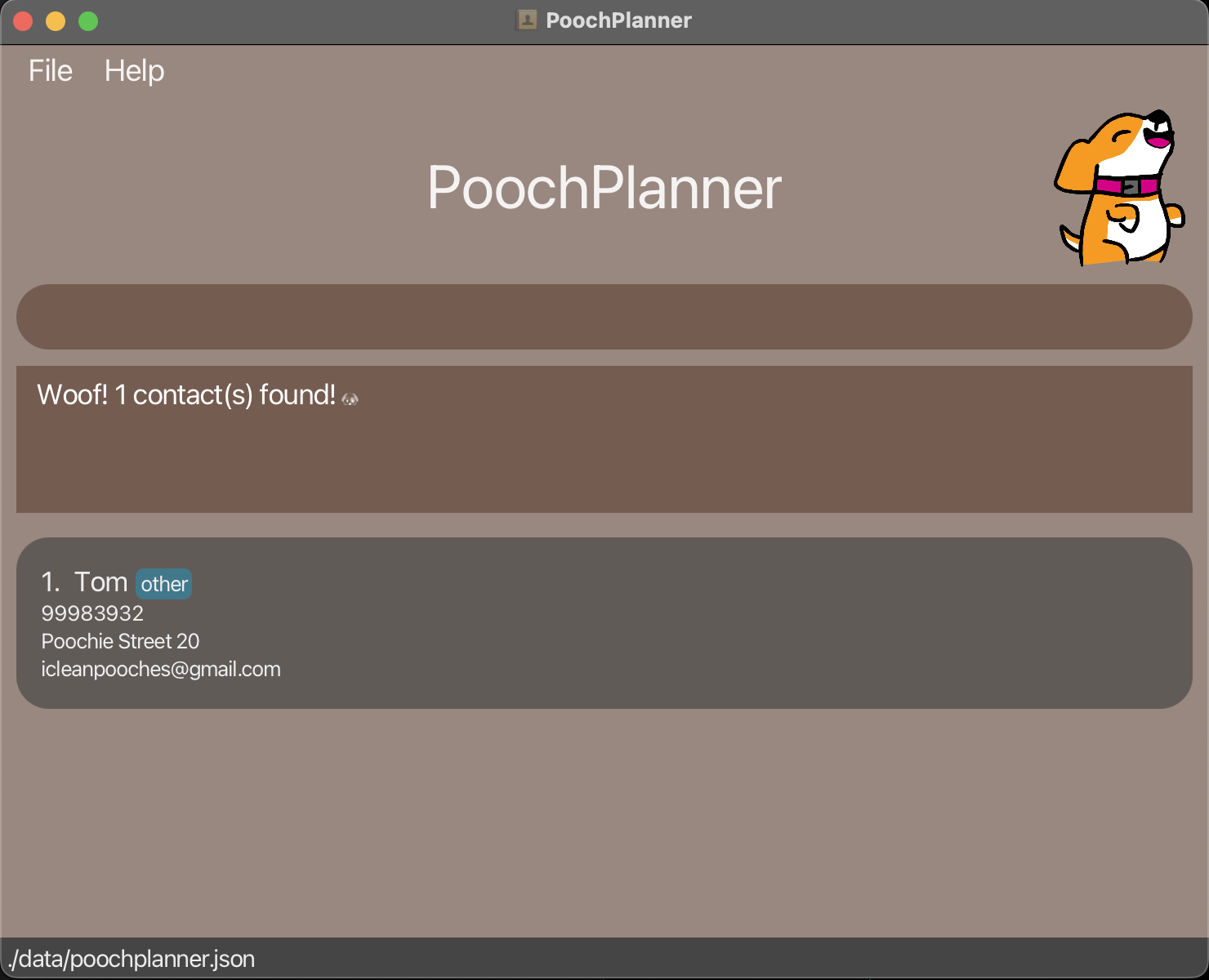
/search ; name : Tom Constraints:
-
Any valid fields, such as
name,phone,address,email,salary,employment,price,product,skill,commission,tagornote, can be provided as a search field. -
Multiple search fields may be provided.
-
Queries are case-insensitive and space-sensitive.
-
Duplicate entries for the same fields are not allowed. For instance,
/search ; name : Janna ; name : Poochieis not allowed.
Tips:
- You can use
/listto see your full contacts list again after searching for a contact!
If you would like to search for the exact salary/price/commission, you may follow this format:
-
To search for the exact
salaryandcommission, your input must be in the format ${Number}/hr. -
To search for the exact
price, your input must be in the format ${Number}/{quantity}.
If you would like to search for salaries/prices/commissions within a specified range, you may follow this format:
-
To search for a range of values for
salaries/prices/commissions, your input must be in the format ${Number}. -
For instance, if you would like to search for all salaries within the range
$50-59/hr, you may key in/search ; salary : $5, with$5as the search query. This displays all staff that are paid from$50/hrto$59/hr. -
Note that this query also searches for staff with salaries of exactly
$5/hr, from$500/hrto$599/hras well, and even in larger ranges.
Deleting a contact : delete
Deletes a person / staff / supplier / maintainer contact from your contacts list in PoochPlanner so that you can remove your outdated contacts from PoochPlanner.
Format:
/delete ; name : [value]
Example:
-
/delete ; name : PoochieThe above command deletes the contact named
Poochie, providedPoochieexists in your contacts list.
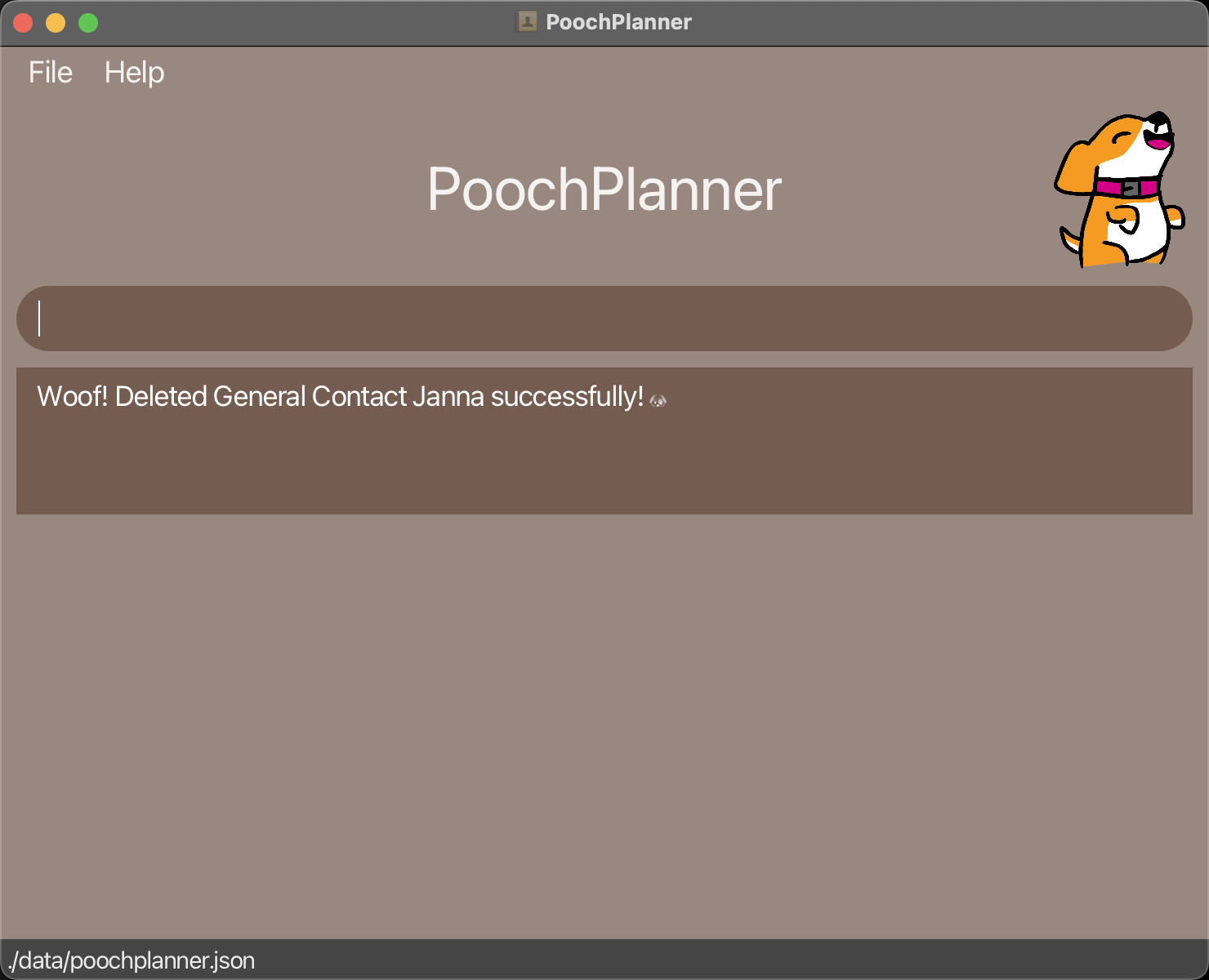
/delete ; name : Janna Constraints:
-
nameis a compulsory field that is case-insensitive and space-sensitive. -
A contact with the specified
namemust be present in your contacts list.
Special Features
Rating a Contact : rate
Gives a performance rating to a person / staff / supplier / maintainer contact from your contacts list in PoochPlanner so that you can track the performance of your contacts.
Format:
/rate ; name : [name] ; rating : [rating value from 0-5]
Example:
-
/rate ; name : Poochie ; rating : 3The above command rates the contact named
Poochiewith a rating of3, provided a contact with the namePoochieexists in your contacts list.
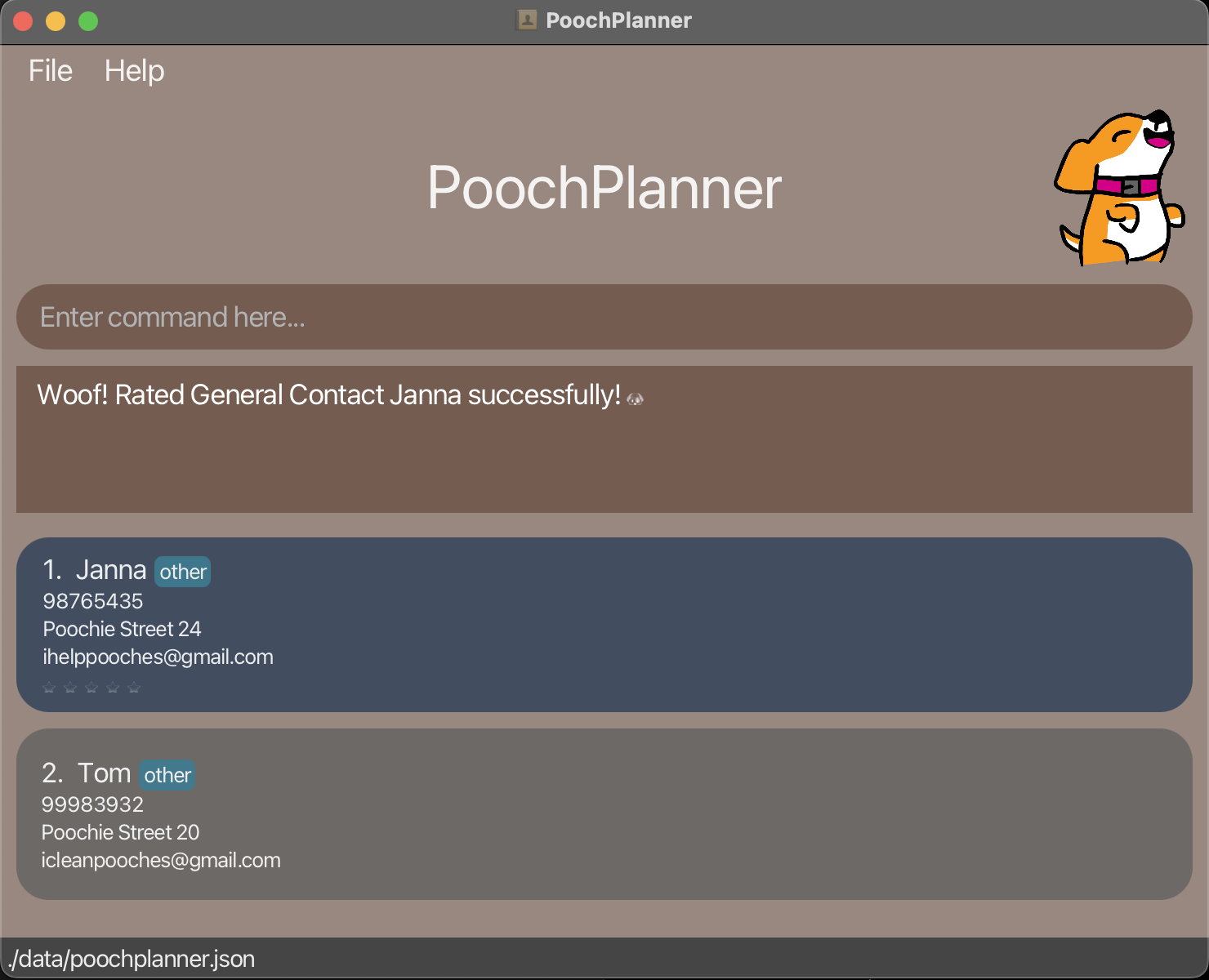
/rate ; name : Janna ; rating : 55 in your contacts list. Constraints:
-
ratingcan only accept whole number values from0to5inclusive. -
A contact with the specified
namemust be present in your contacts list. -
nameandratingare compulsory fields that are both case-insensitive and space-sensitive. -
A
ratingof0is equivalent to no rating given and will not display any rating.
Tip:
- You can set a contact’s
ratingto0to reset its rating!
Pinning a contact : pin
Pins a person / staff / supplier / maintainer contact so that your important contacts will always appear at the top of your contacts list in PoochPlanner.
Format:
/pin ; name : [name]
Example:
-
/pin ; name : PoochieThe above command pins the contact named
Poochie, provided a contact with the namePoochieexists in your contacts list.
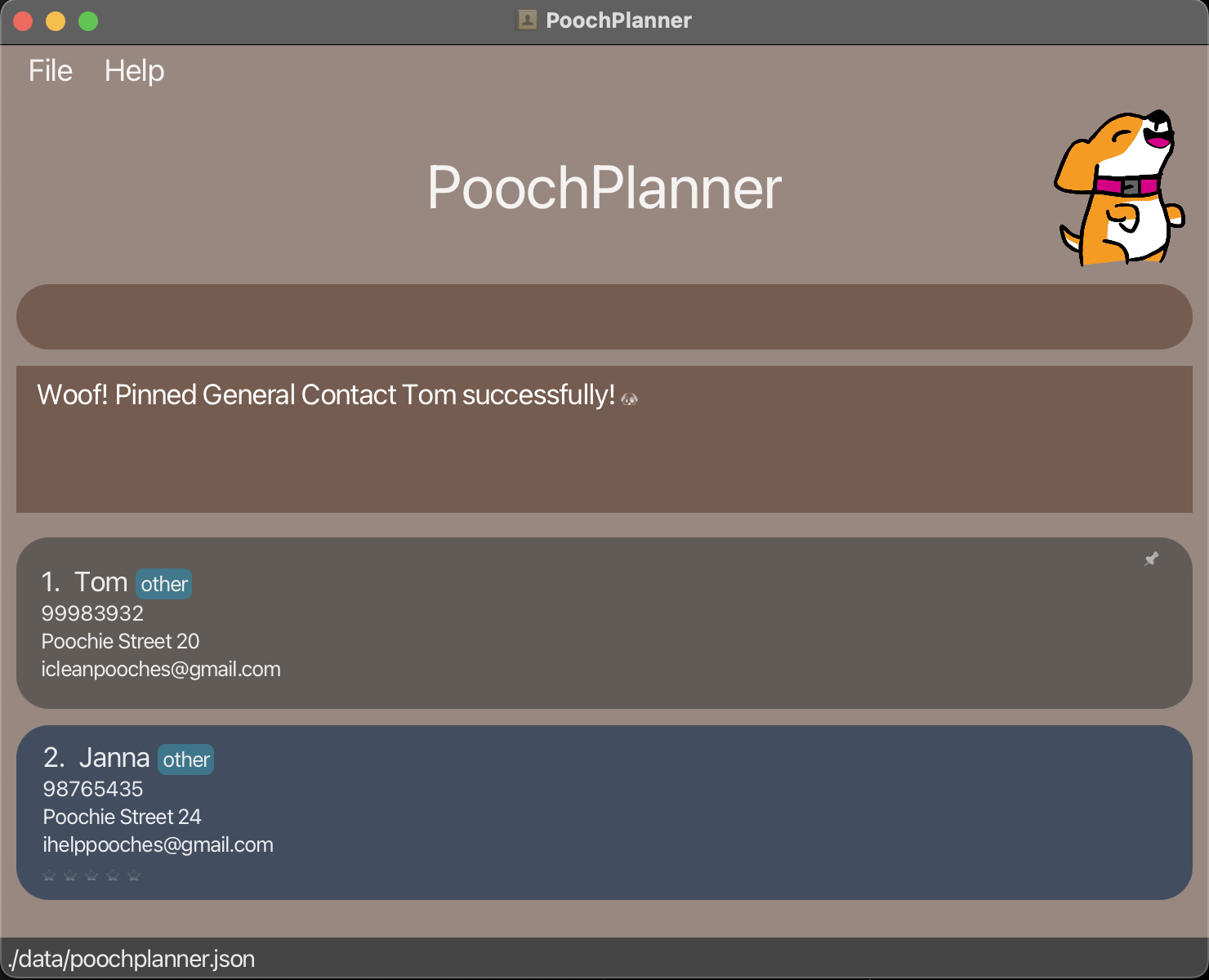
/pin ; name : Tom Constraints:
-
nameis a compulsory field that is case-insensitive and space-sensitive. -
A contact with the specified
namemust be present in your contacts list. -
Using the
pincommand on a contact that has been pinned does not make any changes to your contacts list and simply repins the same contact successfully. -
A contact will remain pinned if you use the
undocommand once on a contact that has been pinned twice or more.
Tips:
-
Use the
pincommand for your frequent contacts! -
For your convenience, if you have accidentally made a typo in the name value, you may conveniently rectify your mistake by retyping the name prefix and name value in your command as only the latest field will be processed.
Unpinning a contact : unpin
Unpins a person / staff / supplier / maintainer contact so that your less important contacts can be removed from the top of your contacts list in PoochPlanner.
Format:
/unpin ; name : [name]
Example:
-
/unpin ; name : PoochieThe above command unpins the contact named
Poochie, provided a contact namedPoochieexists in your contacts list.
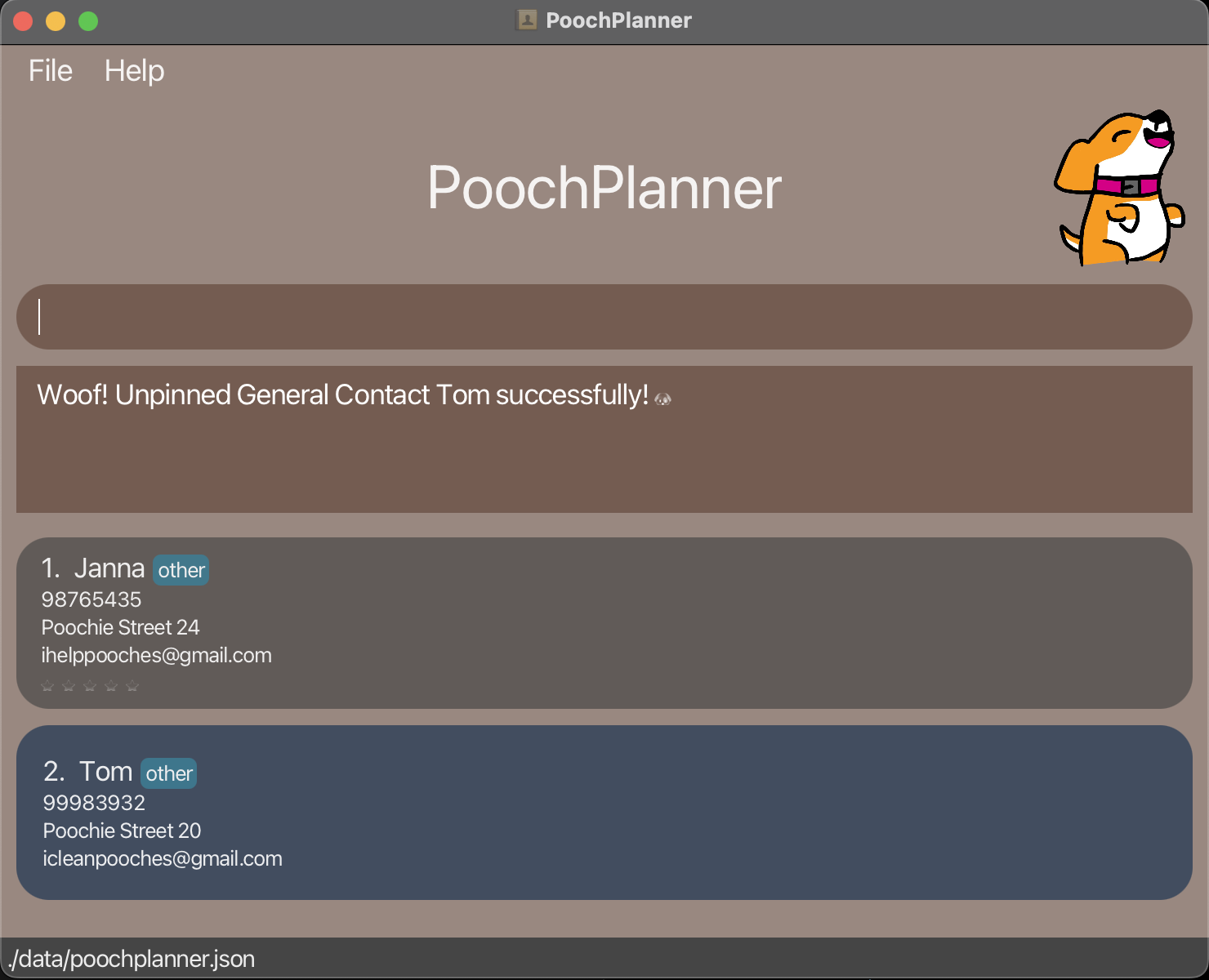
/unpin ; name : Tom Constraints:
-
A contact with the specified
namemust be present in your contacts list. -
Using the
pincommand on a contact that has been pinned does not make any changes to your contacts list and simply repins the same contact successfully. -
nameis a compulsory field that is case-insensitive and space-sensitive. -
A contact with the specified
namemust be present in your contacts list. -
Using the
unpincommand on a contact that is already unpinned does not make any changes to your contacts list and simply unpins the same contact successfully. -
A contact will remain unpinned if you use the
undocommand once on a contact that has been unpinned twice or more.
Tip:
- For your convenience, if you have accidentally made a typo in the name value, you may conveniently rectify your mistake by retyping the name prefix and name value in your command as only the latest field will be processed.
Sorting the address book : sort
Sort the address book by a target field in lexicographical order so that you can display all of your contacts neatly and locate them easily.
Format:
/sort ; field : [target-field]
Example:
-
/sort ; field : nameThe above command sorts the contacts by
namein lexicographical order.
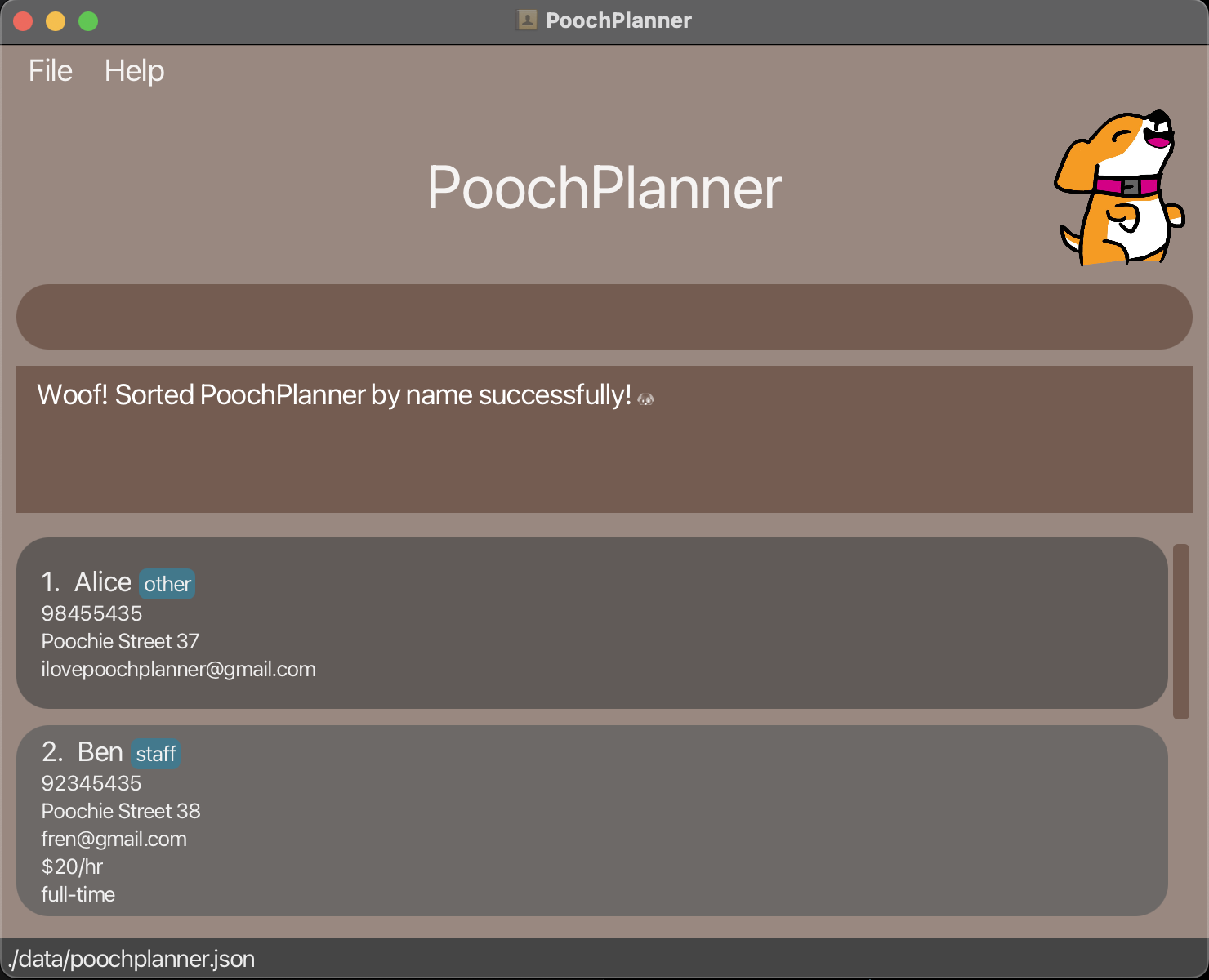
name field./sort ; field : namename in lexicographical order. Constraints:
-
This command sorts by specifying a valid field, such as
name,phone,email,address,salary,employment,price,product,skill,commission,tagornote. -
All field values are case-insensitive.
-
At least one field must be provided.
Tip:
- For your convenience, if you have accidentally made a typo in the field value, you may conveniently rectify your mistake by retyping the corresponding prefix and field value in your command as only the latest field will be processed.
Adding a note : note
Adds a note to a specified person in your PoochPlanner so that you can keep track of any additional details regarding your contacts. You may also specify an optional deadline for the note.
Formats:
/note ; name : [name] ; note : [note message]
/note ; name : [name] ; note : [note message] ; deadline : [date]
Examples:
Add a note without a deadline:
-
/note ; name : Moochie ; note : get 10kg of matcha from moochieThe above command adds the note “get 10kg of matcha from moochie” to the contact with name
Moochie. Note that this note has no deadline.
Add a note with a deadline:
-
/note ; name : Moochie ; note : get 10kg of matcha from moochie ; deadline : 2020-10-10The above command adds the note “get 10kg of matcha from moochie” to the contact with name
Moochie. Note that this note has a deadline set toOct 10 2020.
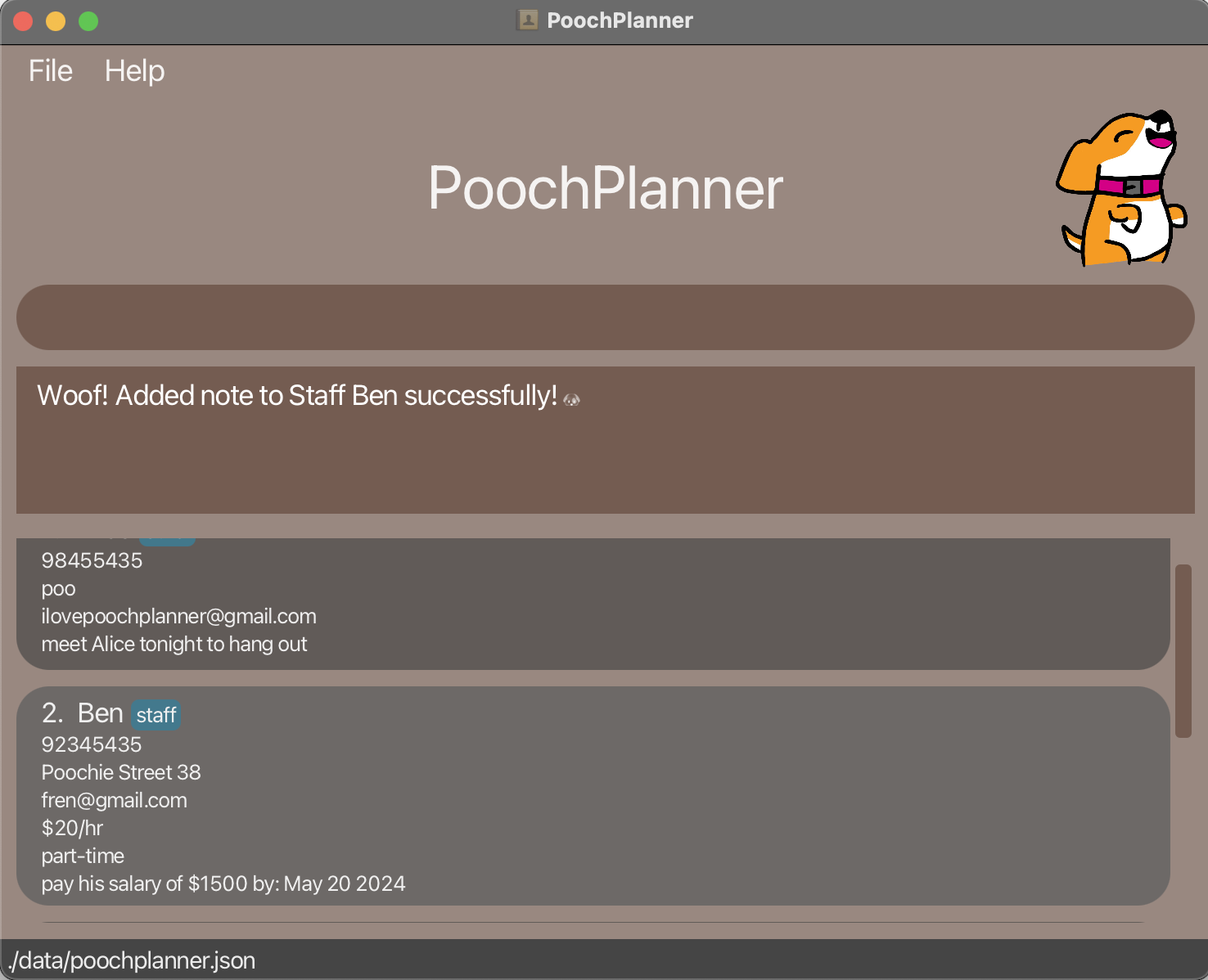
/note ; name : Ben ; note : pay his salary of $1500 ; deadline : 2024-05-20 Constraints:
-
nameandnoteare compulsory fields. -
deadlineis an optional field. -
deadlinemust follow “YYYY-MM-DD” format. -
nameis case-insensitive and space-sensitive. -
A contact with the specified
namemust be present in your contacts list. -
notecan take any non-empty string.
Tips:
-
Notes added are intended to be short details.
-
To remove a note, specify in the note field
No note here. This note is case-sensitive. -
For your convenience, if you have accidentally made a typo in the field value, you may conveniently rectify your mistake by retyping the corresponding prefix and field value in your command as only the latest field will be processed.
-
Refrain from using
;in your note. The use of;makes the command difficult to parse as;is used as a delimiter. This may result in your note not being captured.
Undoing a command : undo
Undoes the most recent action so that you can easily revert the changes that you made in PoochPlanner.
Format:
/undo
Example:
-
/undoThe above command undoes the most recent command.
Below is an example of undoing an add command:
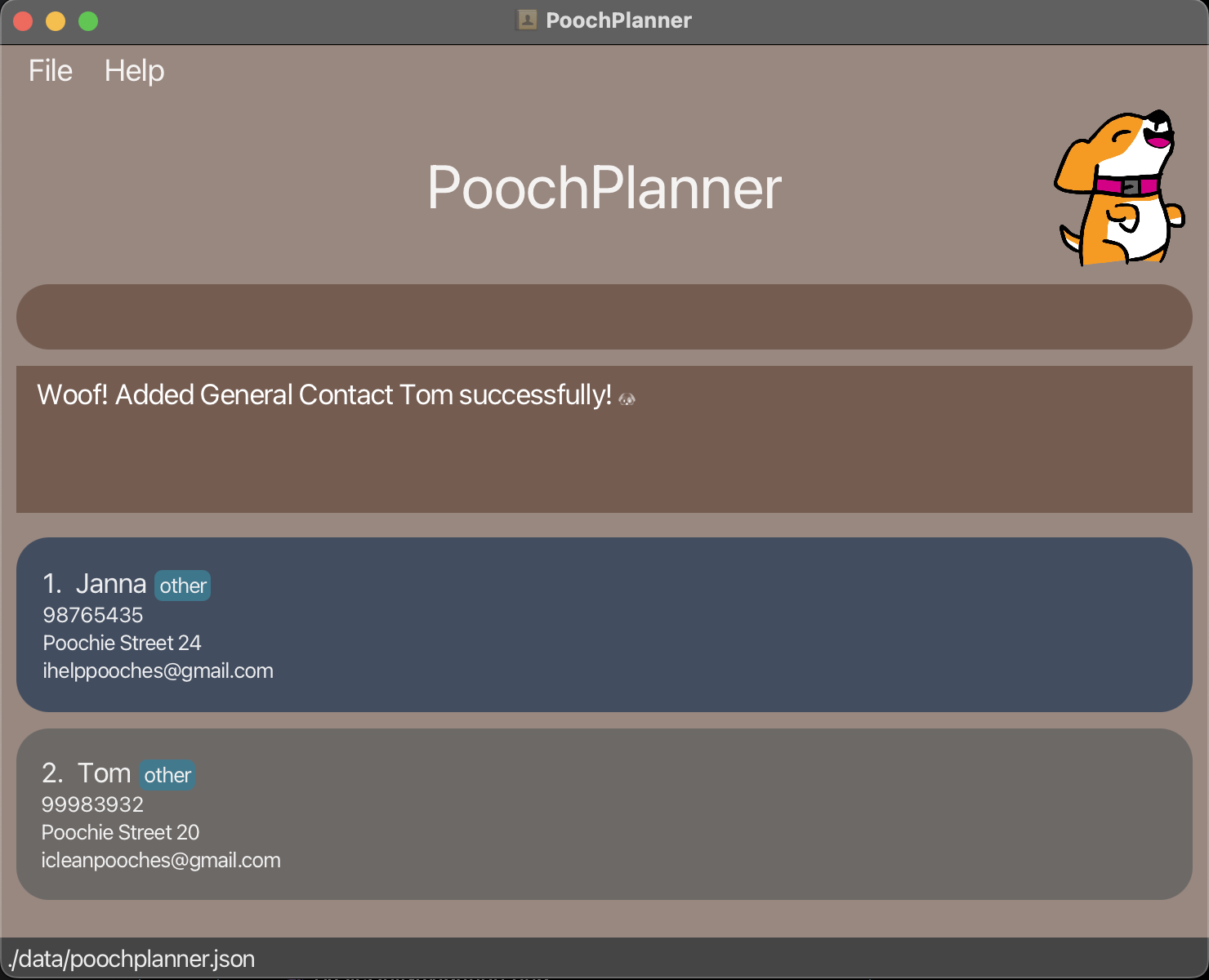
/add-person ; name : Tom ; phone : 99983932 ; address : Poochie Street 20 ; email : icleanpooches@gmail.com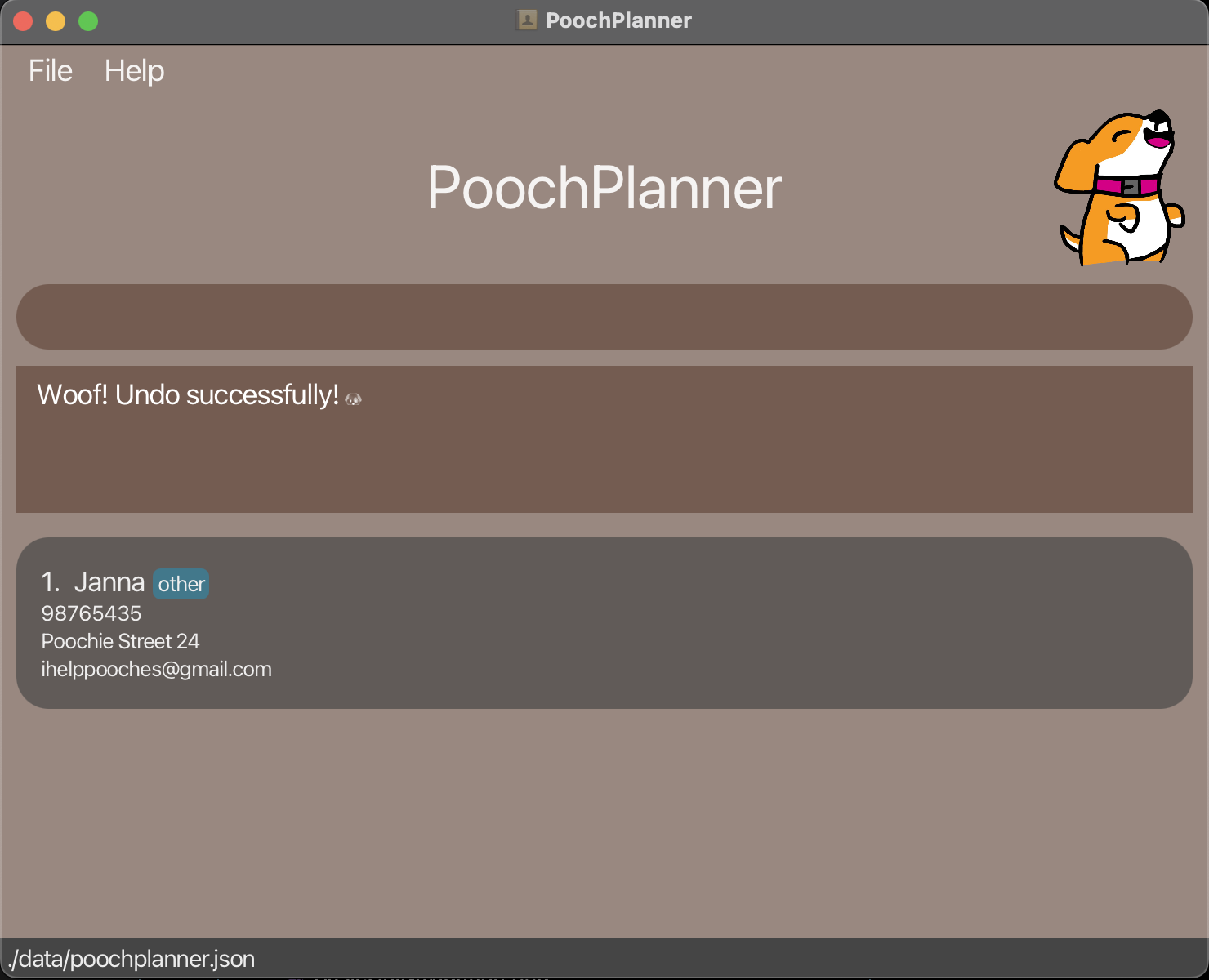
/undo Constraints:
-
There are no additional fields required for this command.
-
Any unnecessary parameter or value after
/undowill simply be ignored. -
This command can only be executed when at least one change has been made.
Tips:
-
/undoworks on all commands that have modified your contacts list. -
/undowill not work on commands that do not modify your contacts list such as/search,/list, and/helpcommands!
Redoing a command : redo
Redoes the most recent undo action so that you can easily revert any unintentional uses of the undo command that you made in PoochPlanner.
Format:
/redo
Example:
-
/redoThe above command redoes the most recent
undocommand.
Below is an example of redoing an add command :
/undoadd command for the contact named "Tom".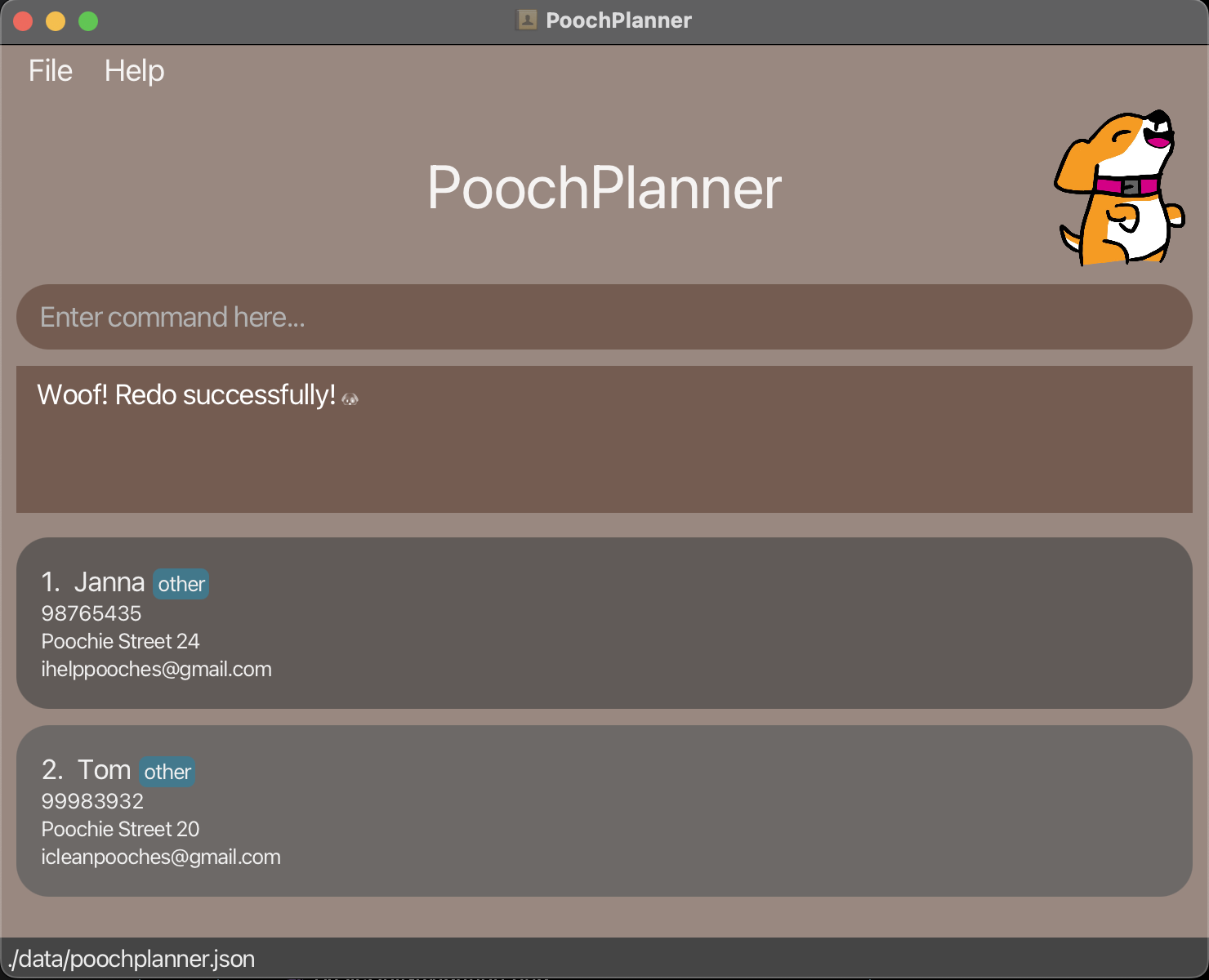
/redoadd command for the contact named "Tom". Constraints:
-
There are no additional fields required for this command.
-
Any unnecessary parameter or value after
/redowill simply be ignored. -
This command can only be executed when at least one
/undocommand has been executed.
Tips:
-
/redoworks on all commands that modify your contacts list. -
/redowill not work on commands that do not modify your contacts list such as/search,/list, and/helpcommands!
Viewing help : help
Shows a help message of how to use commands so that you can get help regarding the commands easily.
Format:
/help ; command : [command type]
Examples:
-
/help ; command : delete
The above command provides help for thedeletecommand. -
/help ; command : add
The above command provides help for theaddcommand.
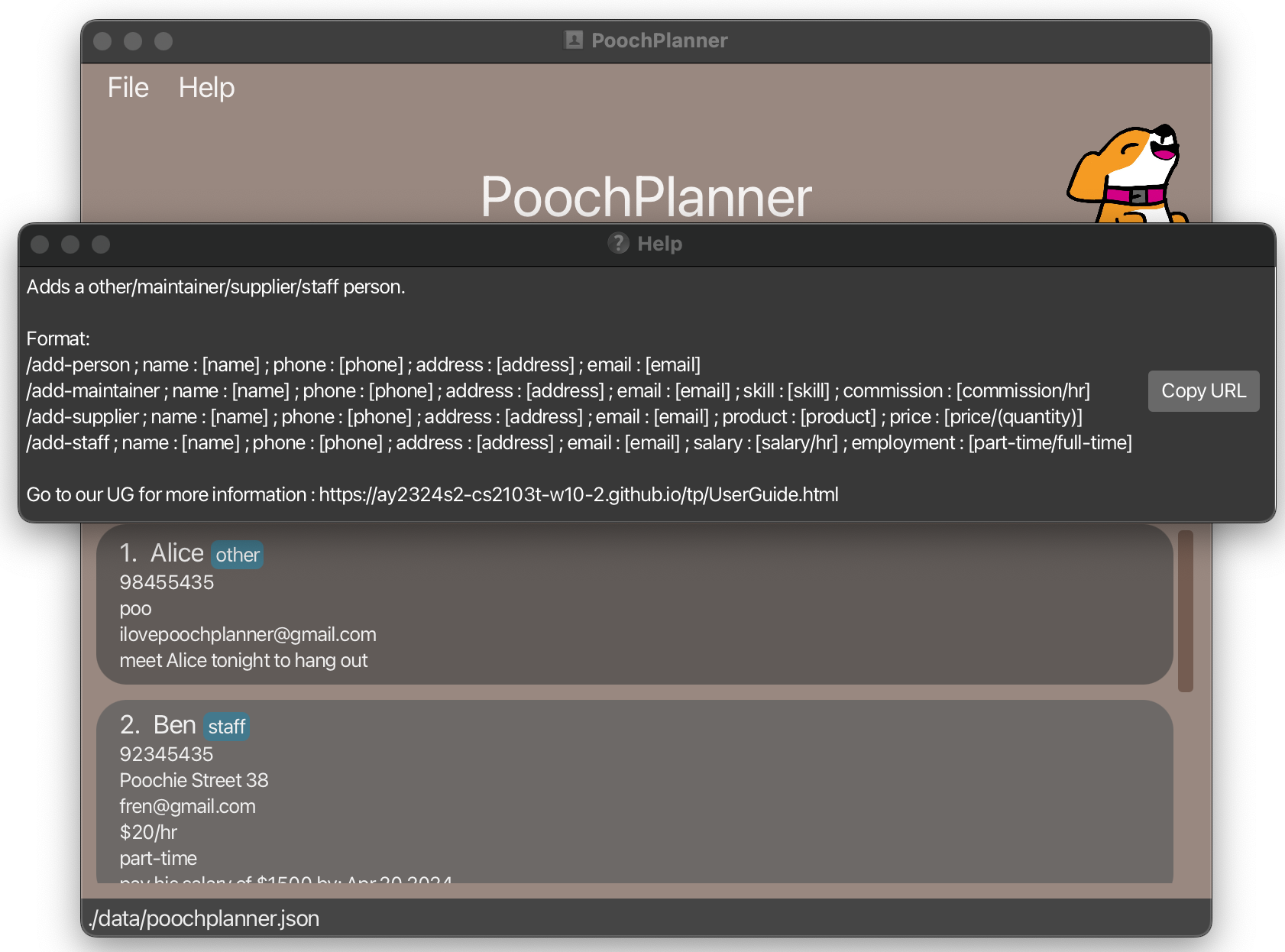
add command./help ; command : addadd command. Constraints:
-
commandis a compulsory field. -
Help is given for all valid commands in PoochPlanner. Valid command inputs include
general,add,clear,delete,edit,exit,list,note,pin,unpin,undo,redo,rate,remind,search,sort.
Tips:
-
If you wish to get help for all commands, enter the command input as
generalto open the general help window. -
For your convenience, if you have accidentally made a typo in the field value, you may conveniently rectify your mistake by retyping the corresponding prefix and field value in your command as only the latest field will be processed.
Viewing reminders : remind
Shows all contacts with note deadlines from today onwards so that you can view all your upcoming deadlines easily.
Format:
/remind
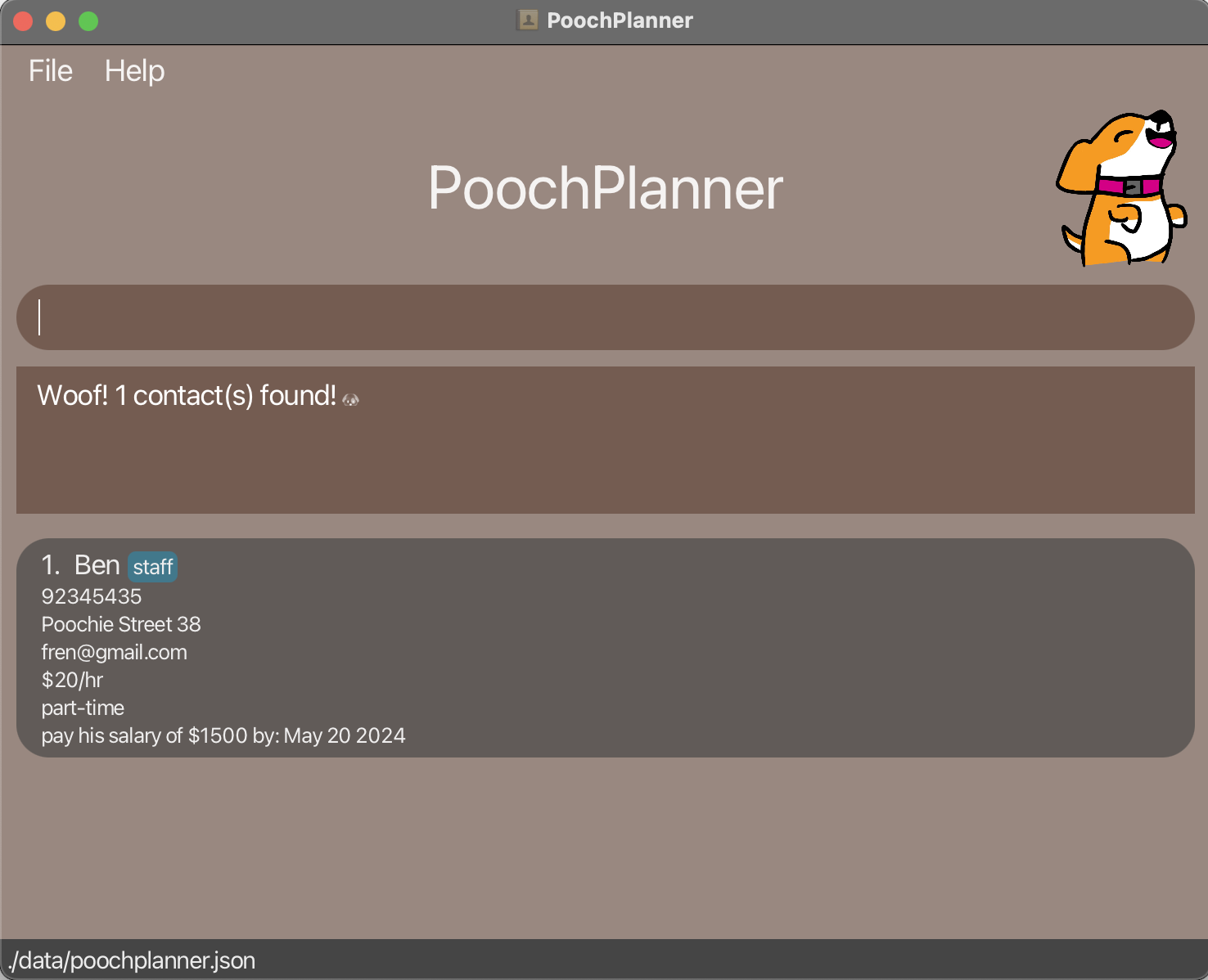
Example:
-
/remind
The above command displays all contacts with note deadlines from today onwards.
/remind Tips:
-
Specifying
/remind [any text]is equivalent to/remind. -
To revert back to your full contacts list, you can use the command
/list.
Clearing all contacts : clear
Remove all contacts from your contacts list so that you can reset your contacts list easily.
Format:
/clear
Example:
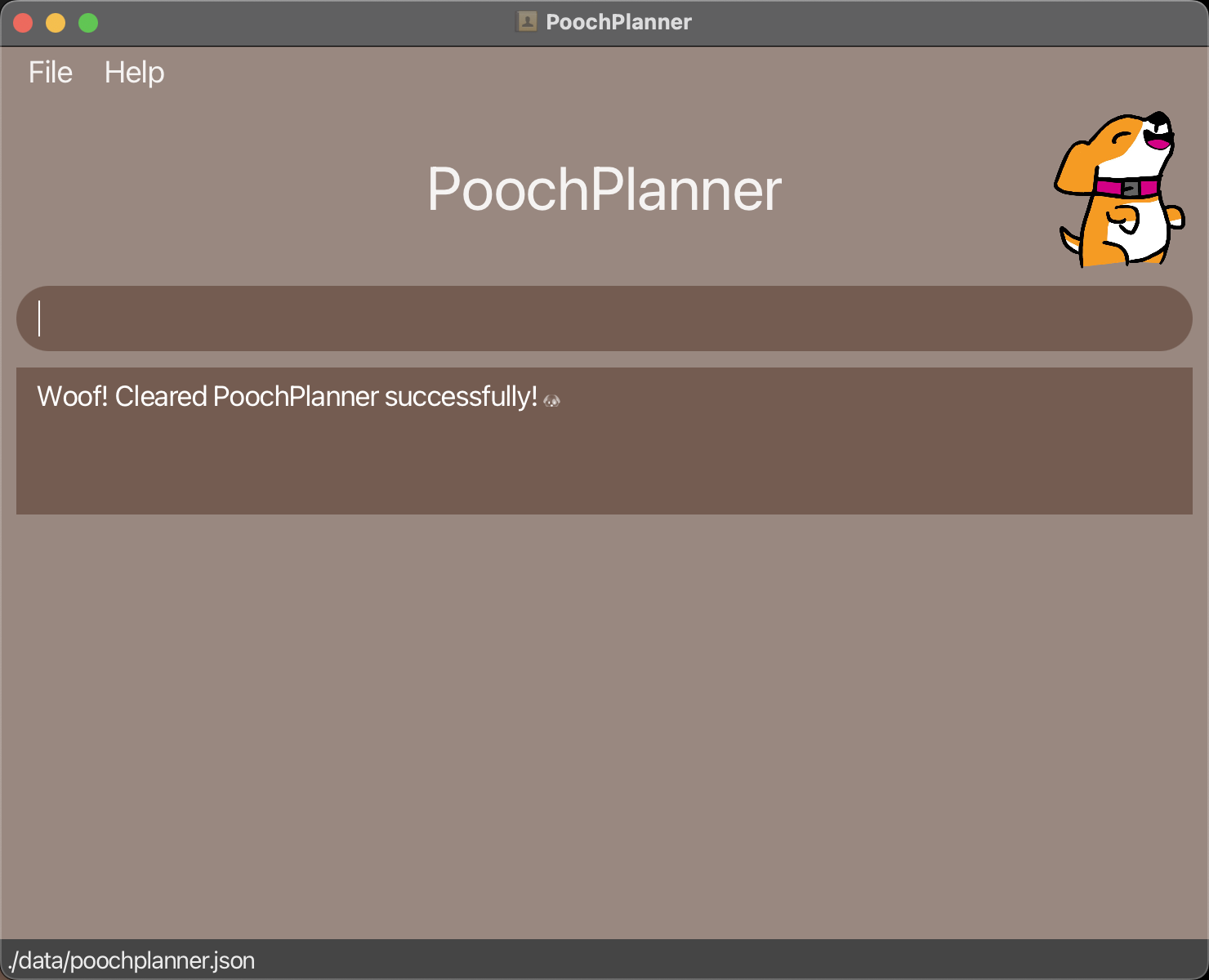
-
/clear
The above command clears all contacts from your contacts list.
/clear Tip:
- To revert to your full contacts list, you can use the command
/undo.
Listing all contacts : list
Lists all contacts in your PoochPlanner so that you can view all of your contacts in PoochPlanner at once.
Format:
/list
Example:
-
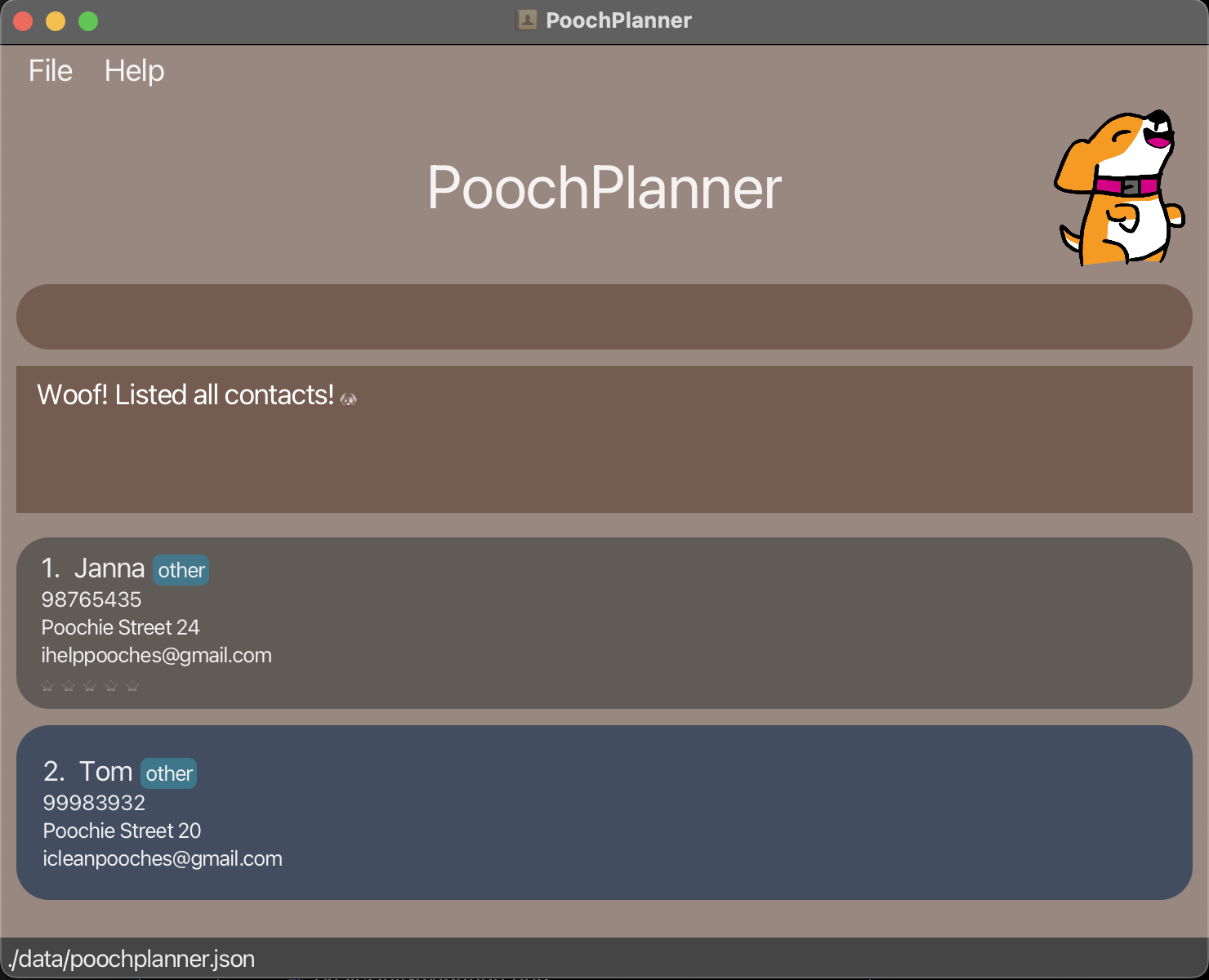
/list
The above command lists all contacts in your contacts list.
/list Tip:
- To revert to your full contacts list after using any filtering commands such as
/search, you can use the command/list.
Exiting the program : exit
Exits your PoochPlanner application.
Format: /exit
Saving the data
Data in your PoochPlanner is saved in the hard disk automatically after any command that modifies the data. You will not need to save any data manually.
Editing the data file
Data in your PoochPlanner is saved automatically as a JSON file [JAR file location]/data/poochplanner.json. Advanced users are welcome to update data directly by editing their poochplanner.json file.
Caution:
Manually editing the JSON file is not advised and should be taken with extreme caution.
If your changes to the data file make its format invalid, your PoochPlanner may discard all data and start with an empty data file on the next run.
Hence, it is recommended that you make a backup of the file before editing it.
Furthermore, certain manual edits that you make can cause your PoochPlanner to behave in unexpected ways (e.g. if a value entered lies outside its acceptable range).
Common Errors
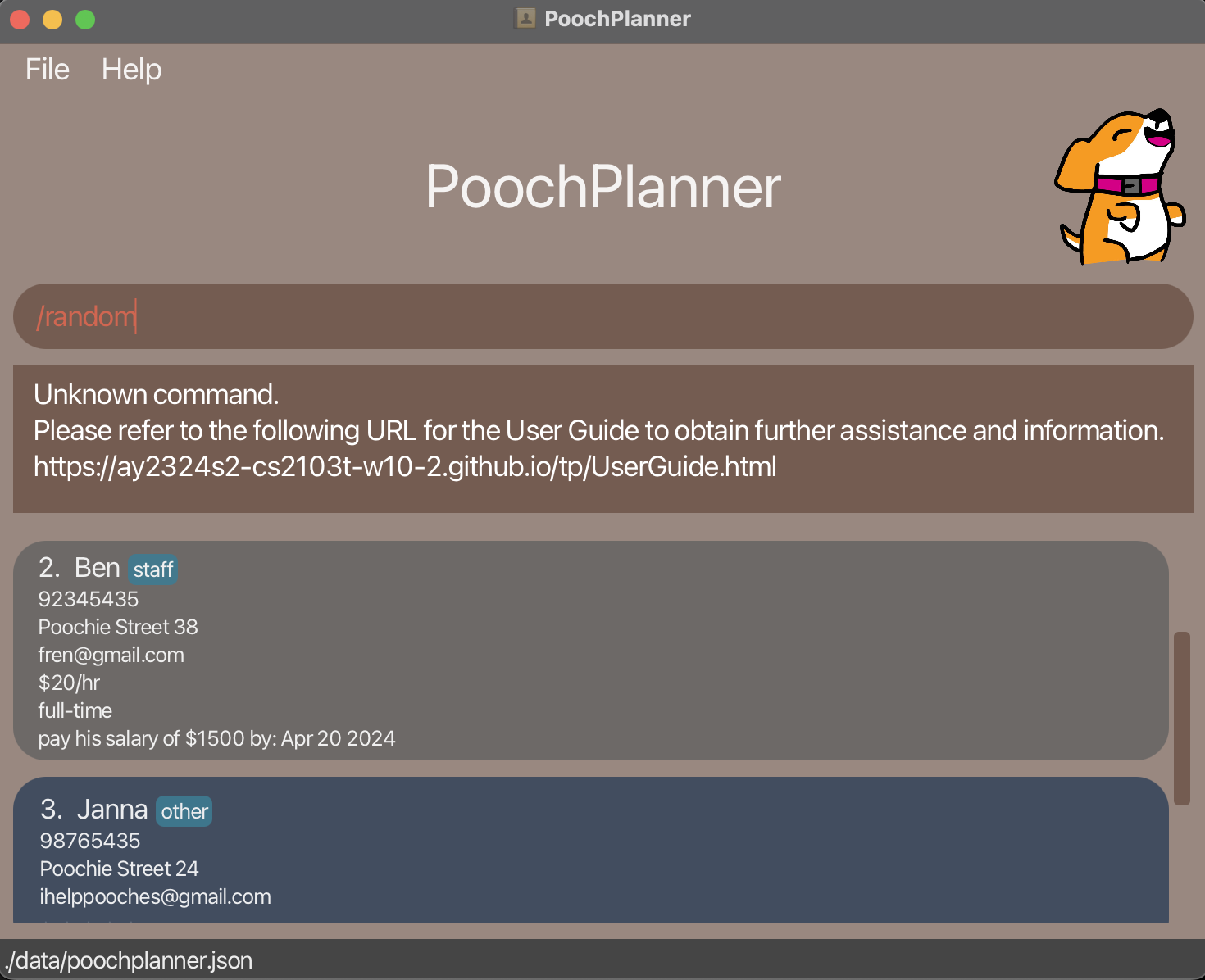
Unknown Command
If you encounter an unknown command error, please ensure that the command you entered is a valid command mentioned
in our Command Summary. Below is an example of an unknown command input and the corresponding error message.
Invalid Field
If you encounter an invalid field error, please ensure that the field you entered is a valid field for the command you
are using. Refer to our Command Summary for a list of valid fields for each PoochPlanner command.
Below is an example of a command with an invalid field and the corresponding error message.
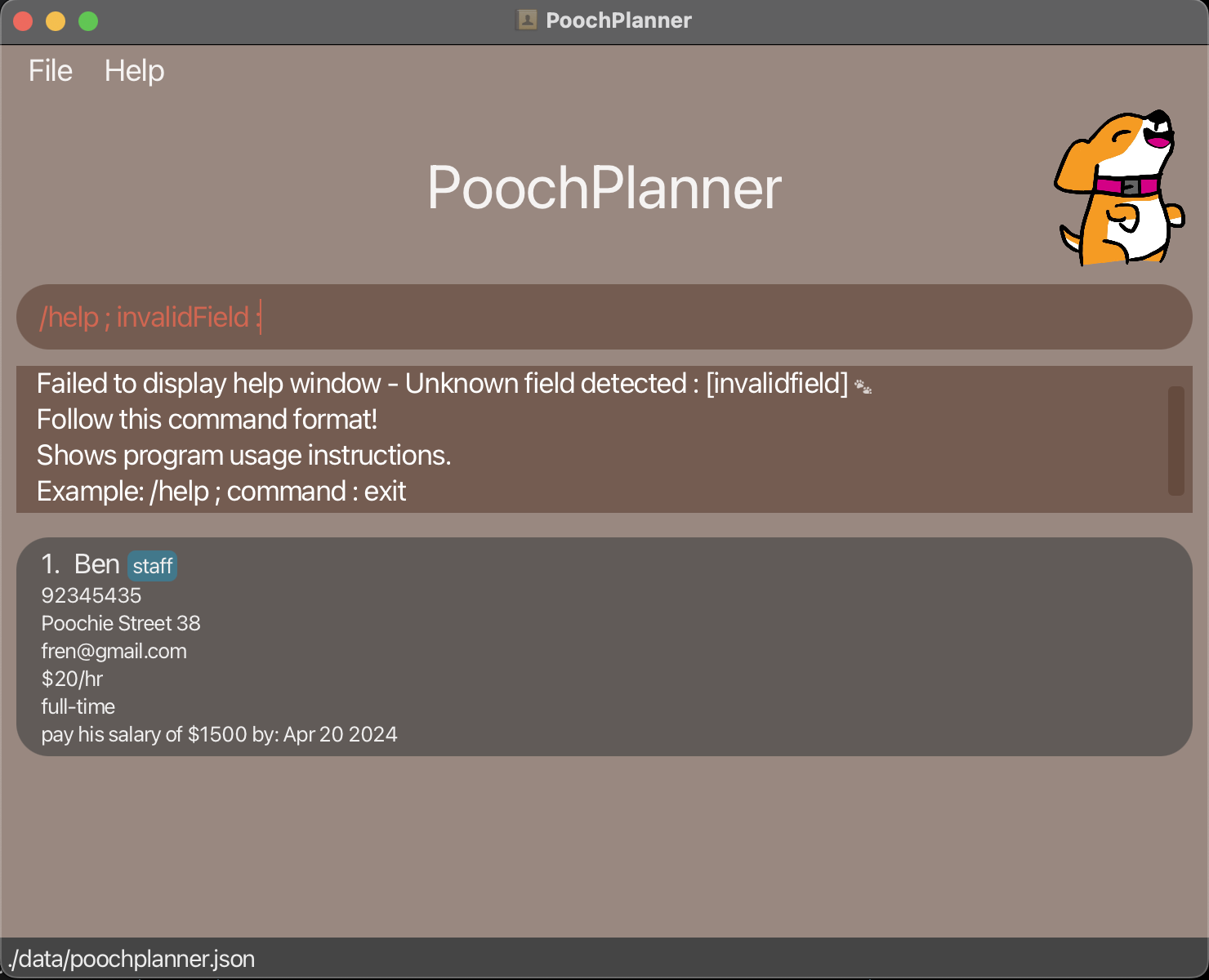
help command with an invalid field.Missing Field
If you encounter a missing field error, please ensure that the fields listed in the error message are present in your command input. Refer to our Command Summary for a list of fields required for all PoochPlanner commands. Below is an example of a command with a missing field and the corresponding error message.
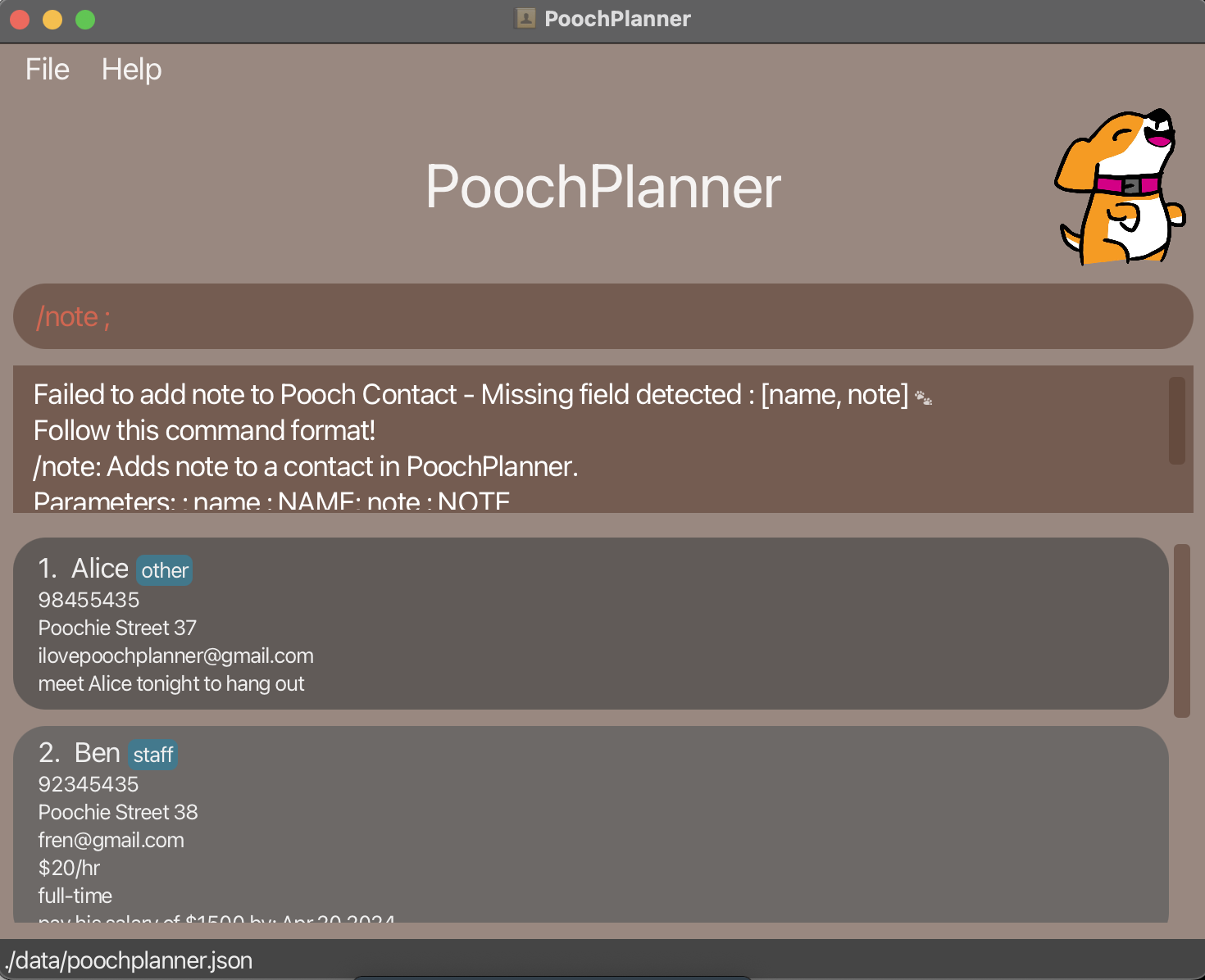
note command with missing fields for name and note.FAQ
Launching PoochPlanner
Q: How can I launch PoochPlanner if clicking on the JAR file does not work?
A: There are two possible methods to launch PoochPlanner.
Method 1: Using the Command Line
- Open the command line in your operating system’s terminal software.
- Navigate to the directory where the JAR file is located.
- Enter
java -jar [CS2103T-W10-2][PoochPlanner].jarand the PoochPlanner Application should launch.
Method 2: Using .bat/.sh Scripts
- Create a new text file and paste the following line into the file:
java -jar [JAR file location]/[CS2103T-W10-2][PoochPlanner].jar - Save the file as
poochplanner.bat(Windows) orpoochplanner.sh(macOS/Linux). - Change the admin settings of the script to allow it to run as a program:
- Windows: Right-click on the script and select Properties. Under General, check the box that says
Allow this file to run as a program. - macOS/Linux: Open the Terminal and navigate to the directory where the script is located. Type
chmod +x [script name]and pressEnter.
Note: (chmod +xchanges permissions of the script to allow it to be executed)
- Windows: Right-click on the script and select Properties. Under General, check the box that says
- Double-click on the script to launch PoochPlanner.
Checking Java Version
Q: How can I check my Java version?
A: You can open a command line and type java -version. If you do not have Java installed, you can install Java 11 using the Oracle guide here. Alternatively, you can install the OpenJDK version. For macOS users, you may wish to follow the instructions here.
Loading Data from Another Computer
Q: How can I transfer my PoochPlanner contacts to another computer?
A: You can install PoochPlanner in your target computer and overwrite the empty data file it creates with the file that contains the data of your previous PoochPlanner by copying the contents of the poochplanner.json file from your current computer and pasting it inside the poochplanner.json file of your target computer.
Using PoochPlanner
Q: What are the available commands in PoochPlanner?
A: Please refer to our Command Summary for the list of available commands.
Q: Do I need an internet connection to use PoochPlanner?
A: All of PoochPlanner’s functionality can be used offline! No internet connection is required.
Q: How do I save my data?
A: Data is saved in the hard disk automatically after any command that changes the data. There is no need to save manually.
Q: If I have a lot of contacts, is there a way for me to access my most frequently used contacts easily?
A: Yes! You may wish to keep your most important contacts at the top of your contacts list. With our pin feature, PoochPlanner ensures that you are always able to see them!
The syntax for the pin command is as follows:
/pin ; name : [name]
Q: How can I remove a contact’s rating?
A: In PoochPlanner, a 0 rating corresponds to a non-rating (no rating is provided). Therefore, to remove a contact’s rating, simply give the target contact a rating of 0.
The syntax for the rate command is as follows:
/rate ; name : [name] ; rating : [rating]
Q: Can I append a note to a contact when creating it?
A: Yes you can! You may add a note to a contact at the time of its creation. Simply append the ; note : prefix, and you should be on your way!
Example: Adding a new contact with a note and a rating
/add-person ; name : Pooch ; phone : 98883888 ; address : Pooch Street 32 ; email : impooch@gmail.com ; rating : 3 ; note : Hello my name is Pooch!
Note: While adding notes is permitted with the add command, we highly suggest you to make use of our note command if you would like to add a deadline to the note.Known issues
-
When using multiple screens, if you move PoochPlanner to a secondary screen, and later switch to using only the primary screen, the GUI will open off-screen. The remedy is to delete the
preferences.jsonfile created by your PoochPlanner before running PoochPlanner again.
Prefix Summary
A prefix is an integral construct of PoochPlanner’s commands that allow PoochPlanner to uniquely identify contact fields.
| Prefix | Field | Contact Type |
|---|---|---|
; name : |
Specifies the name of the contact. | All |
; phone : |
Specifies the phone number of the contact. | All |
; address : |
Specifies the address of the contact. | All |
; email : |
Specifies the email address of the contact. | All |
; note : |
Specifies the note appended to the contact. | All |
; rating : |
Specifies the rating given to the contact. | All |
; deadline : |
Specifies the deadline of the note appended to the contact. | All |
; command : |
Specifies the command type to give help for. | All |
; salary : |
Specifies the salary of the contact. | Staff |
; employment : |
Specifies the employment of the contact. | Staff |
; product : |
Specifies the product sold by the contact. | Supplier |
; price : |
Specifies the price charged by the contact. | Supplier |
; skill : |
Specifies the type of service offered by the contact. | Maintainer |
; commission : |
Specifies the commission charged by the contact. | Maintainer |
Command Summary
| Action | Format and Example |
|---|---|
| Add Person | Format : /add-person ; name : [name] ; phone : [phone] ; address : [address] ; email : [email] Example : /add-person ; name : Janna ; phone : 98765435 ; address : Poochie Street 24 ; email : iamjanna@gmail.com
|
| Add Staff | Format : /add-staff ; name : [name] ; phone : [phone] ; address : [address] ; email : [email] ; salary : [salary] ; employment : [part-time/full-time] Example : /add-staff ; name : Poochie ; phone : 98765435 ; address : Poochie Street 21 ; email : ilovecatstoo@gmail.com ; salary : $50/hr ; employment : part-time
|
| Add Supplier | Format : /add-supplier ; name : [name] ; phone : [phone] ; address : [address] ; email : [email] ; product : [product] ; price : [price] Example : /add-supplier ; name : PetCo ; phone : 98673098 ; address : Meow Street 24 ; email : ilovewombatstoo@gmail.com ; product : kibble ; price : $98/bag
|
| Add Maintainer | Format : /add-maintainer ; name : [name] ; phone : [phone] ; address : [address] ; email : [email] ; skill : [skill] ; commission : [commission] Example : /add-maintainer ; name : Tom Tan ; phone : 98765435 ; address : Poochie Street 24 ; email : ihelppooches@gmail.com ; skill : trainer ; commission : $60/hr
|
| Edit Person | Format : /edit-person ; name : [name] ; field : { target-field : [value] } Example : /edit-person ; name : Poochie ; field : { address : Poochie Street 25 }
|
| Edit Staff | Format : /edit-staff ; name : [name] ; field : { target-field : [value] } Example : /edit-staff ; name : Poochie ; field : { salary : $40/hr ; employment : part-time }
|
| Edit Supplier | Format : /edit-supplier ; name : [name] ; field : { target-field : [value] } Example : /edit-supplier ; name : Poochie ; field : { product : kibble ; price : $75/bag }
|
| Edit Maintainer | Format : /edit-maintainer ; name : [name] ; field : { target-field : [value] } Example : /edit-maintainer ; name : Poochie ; field : { commission : $10/hr }
|
| Delete | Format : /delete ; name : [name] Example : /delete ; name : Poochie
|
| Search | Format : /search ; target-field : [value] Example : /search ; name : Poochie
|
| List | Format : /list Example : /list
|
| Help | Format : /help ; command : [command type] Example : /help ; command : delete
|
| Rate | Format : /rate ; name : [name] ; rating : [rating] Example : /rate ; name : Poochie ; rating : 5
|
| Undo | Format : /undo Example : /undo
|
| Redo | Format : /redo Example : /redo
|
| Pin | Format : /pin ; name : [name] Example : /pin ; name : Poochie
|
| Unpin | Format : /unpin ; name : [name] Example : /unpin ; name : Poochie
|
| Sort | Format : /sort ; field : [target-field] Example : /sort ; field : name
|
| Note | Format : /note ; name : [name] ; note : [note] or /note ; name : [name] ; note : [note] ; deadline : [deadline] Example : /note ; name : Poochie ; note : get dog for groomers ; deadline : 2020-10-10
|
| Remind | Format : /remind Example : /remind
|
| Exit | Format : /exit Example : /exit
|